






Microsoft Office License Removal Tool for Mac Office Apps Troubleshoot
Let’s learn how to use the Microsoft Office License Removal Tool for Mac. If you are troubleshooting and diagnosing Office and would like to remove the license files on your Mac, you can use the license removal tool.
The Microsoft Office License removal tool offers the best solution for the identified problem with office subscriptions and allows you to reactive the Microsoft 365 Apps. The tool removes Office license files on a Mac to fix Office and Office 365 licensing.
Before using the license removal tool, ensure you have the correct account info and password associated with your purchase of Office available for when you reactivate. You can easily take the help if you have subscribed to Microsoft 365 but previously had a one-time purchase of Microsoft 365 for Mac and aren’t seeing certain subscription features.
There could be a few occasions when you are trying to activate Microsoft 365 on a Mac, you might encounter the message “An unknown error has occurred” followed by an error code. You can use the tool to remove the license, reinstall the office apps and try to activate Microsoft 365 for Mac.

Microsoft 365 Apps is an office version that includes apps like Access, Excel, OneDrive, OneNote, Outlook, PowerPoint, Publisher, Teams, and Word. Also, using the subscription, we can connect with Microsoft 365 services such as SharePoint Online, Exchange Online. Here is how to deploy Office using Intune with easy steps.
Download Microsoft Office License Removal Tool for macOS
Let’s follow the steps to download the Microsoft Office License Removal Tool for macOS on your Mac, This tool can remove license files of Office 365, 2021, 2019, and 2016.
Download the license removal tool, https://go.microsoft.com/fwlink/?linkid=849815
Installation Step Office License Removal Tool on macOS
It is recommended to validate that you have the correct account info ready by logging into Office.com /signin and checking for the license you want to activate with.
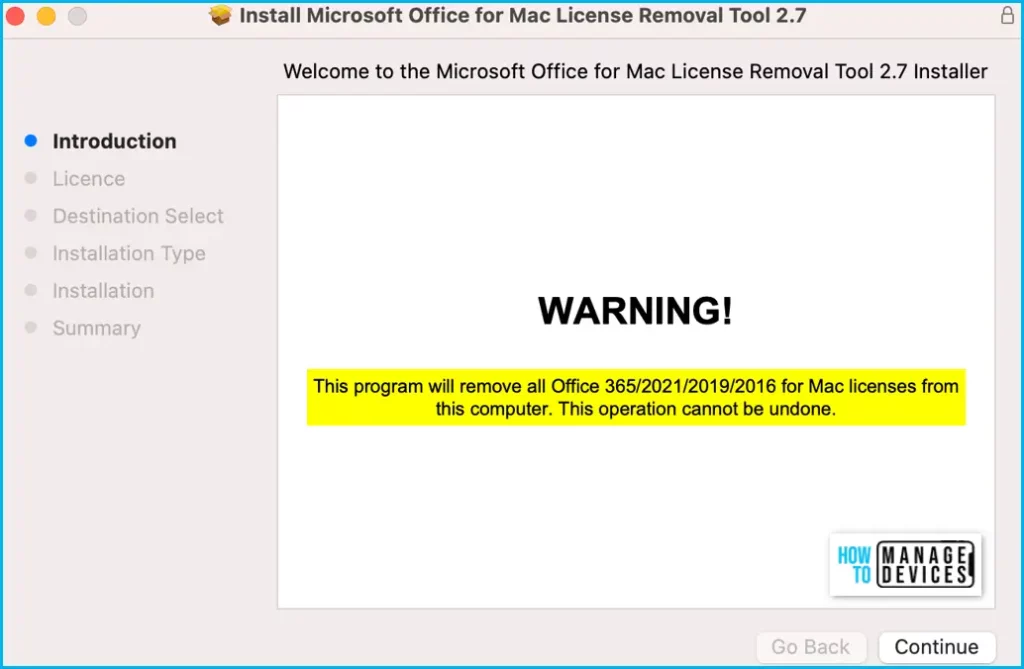
Once you have downloaded the Microsoft_Office_License_Removal.pkg file. Double-click on the PKG file to start the Microsoft Office for Mac License Removal Tool installation and click on Continue.
Important – When installing the Removal tool on your Mac, close all the Office apps. This program will remove all Office 365/2021/2021/2019/2016 for Mac licenses from this computer. This operation cannot be undone.
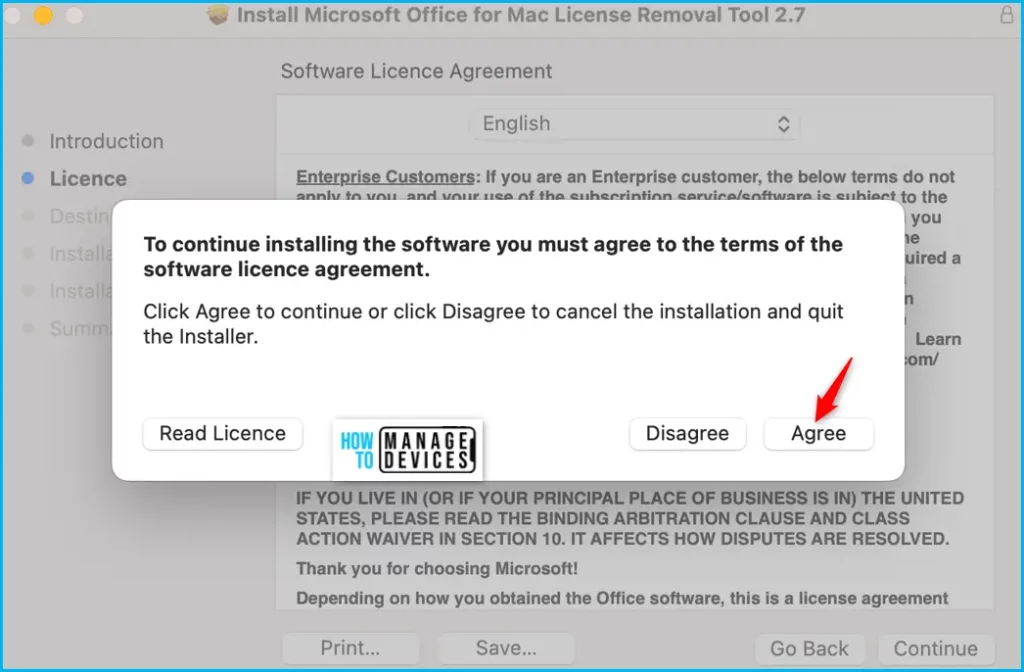
In the installation steps, You will be presented with the Microsoft Office for Mac License Removal Tool license agreement, Read the Microsoft Services Agreement, and click Agree to proceed.
In the Installation Type tab, select the install location where you want to install the Microsoft Office for Mac License Removal Tool. If you want to select the default location, click the Install button.
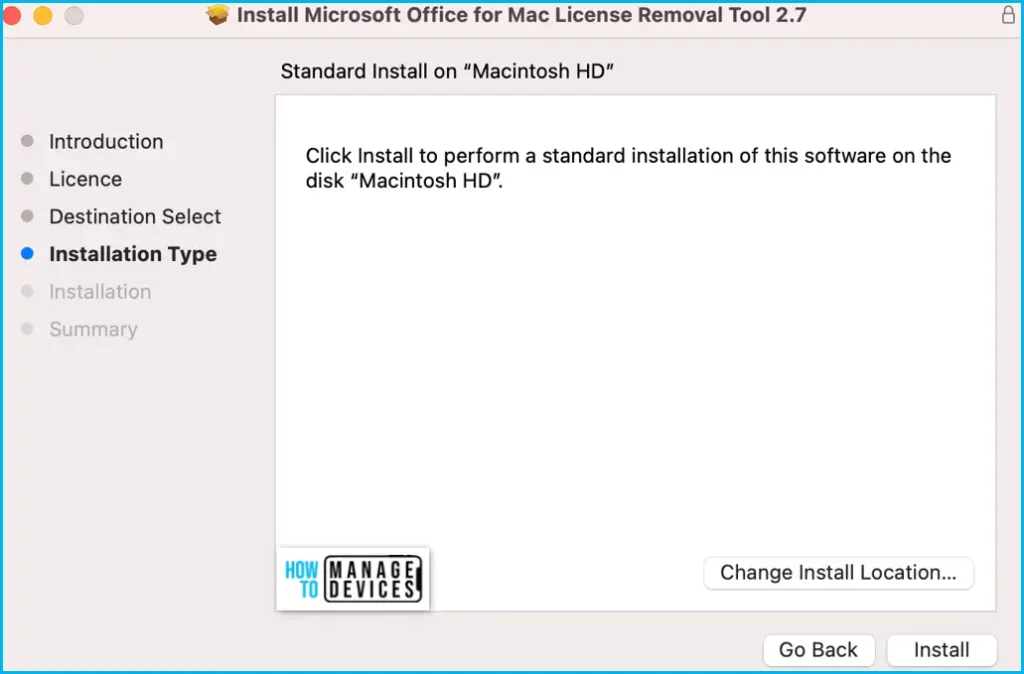
When you are ready to complete the license removal, select Install. You may need to enter your Mac’s local admin account password.
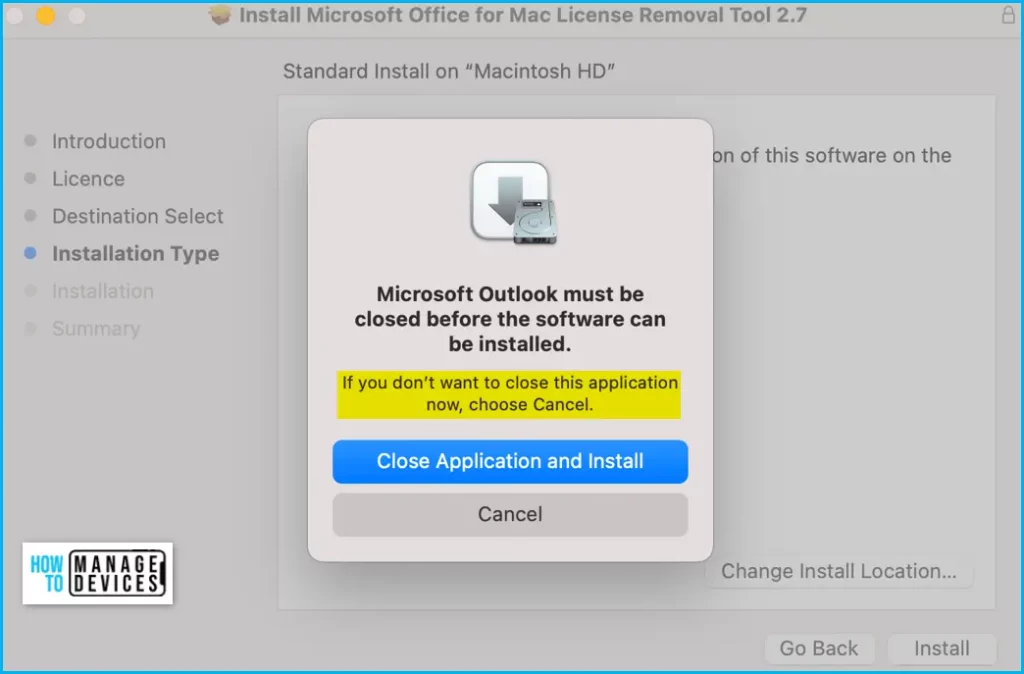
Note: In case you have opened some Microsoft Office Apps, You will be presented with a prompt to close the app before the software can be installed. Click on the Close Application and Install button.
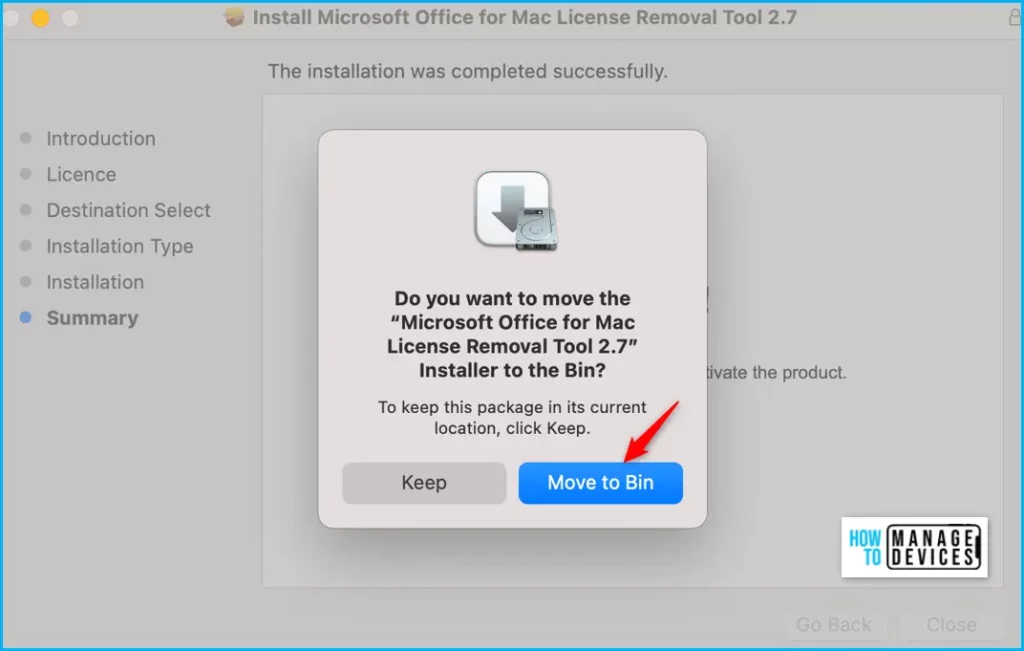
Once the installation is completed successfully, You will be automatically presented with a screen to remove the package to the Bin. If you want to uninstall straightway, You can click on Move to Bin. However, in the later stage, you can also uninstall the License Removal Tool by dragging the Microsoft_Office_License_Removal file from Finder > Downloads to Trash.
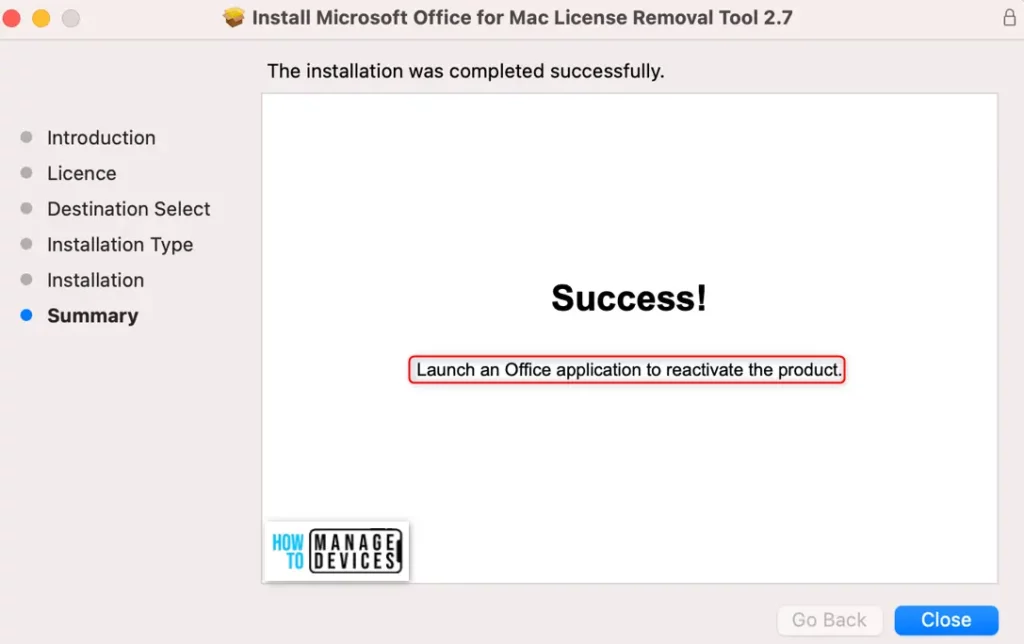
After the tool successfully removes licenses, select Close. You can see the message: Launch an office application to reactive the product.
Now open any Office app and sign in to activate with the email account associated with your Microsoft 365 for Mac license. If you are troubleshooting an issue, you may need to reinstall Office before signing in.
After you’ve successfully activated, restart your computer, and then you’re good to go. If your account has both a Microsoft 365 for Mac license and a one-time purchase associated with it, you will be prompted to choose which license you want to activate. It is recommended always to choose Microsoft 365 for Mac if available.
Author
About Author – Jitesh, Microsoft MVP, has over six years of working experience in the IT Industry. He writes and shares his experiences related to Microsoft device management technologies and IT Infrastructure management. His primary focus is Windows 10/11 Deployment solution with Configuration Manager, Microsoft Deployment Toolkit (MDT), and Microsoft Intune.



Discussion