






Shared Tab in Chat Microsoft Teams Introducing the Best Way to Access Files and Links in a Chat
Hi everyone, today we are discussing Microsoft Teams’ best way to access shared tabs in chat. As you all know, Microsoft Teams announces something exciting every month. In recent months, Microsoft announced the best way to Access Shared Tabs in Chat. Excellent communication and collaboration make a big difference in an organization’s productivity.
Nowadays, we always share files and documents; we must do so, right? Sometimes, we face issues finding those data and files in the chat, which is very difficult. Searching for a particular chat and file is tough when our team chat is long.
Introducing Shared Chat in the tab provides a quick way to find files, links, and media shared in conversations without scrolling through long chat histories. This feature will help you reduce the time spent searching and resharing the documents and files to the team chat.
Microsoft Teams adds the Shared tab in 1:1 and group chats to make teamwork stressless. This tab replaces the Files tab and adds all shared files and links in one place. So, in this post, let’s look into Microsoft Teams’ introduction of the best way to access the shared tab in chat.

Table of Contents
What is the Importance of a Shared Tab in Chat in Microsoft Teams?
1. This feature will help you to stay organized and keep all your files in one place.
2. This will reduce your effort to reshare the file to the team members again.
3. Using a keyword filter in the Shared Tab will help you find specific files and links.
Shared Tab in Chat Microsoft Teams Introducing the Best Way to Access Files and Links in a Chat
Above, we discussed the topic of Access Shared Tab in Chat in Microsoft Teams on a brief note. I also mentioned that teams added a Shared tab in 1:1 and chats group chat conversations. This will replace the Files tab and gather all files, documents, and links in one place. So, let’s look at how to work this in your teams.
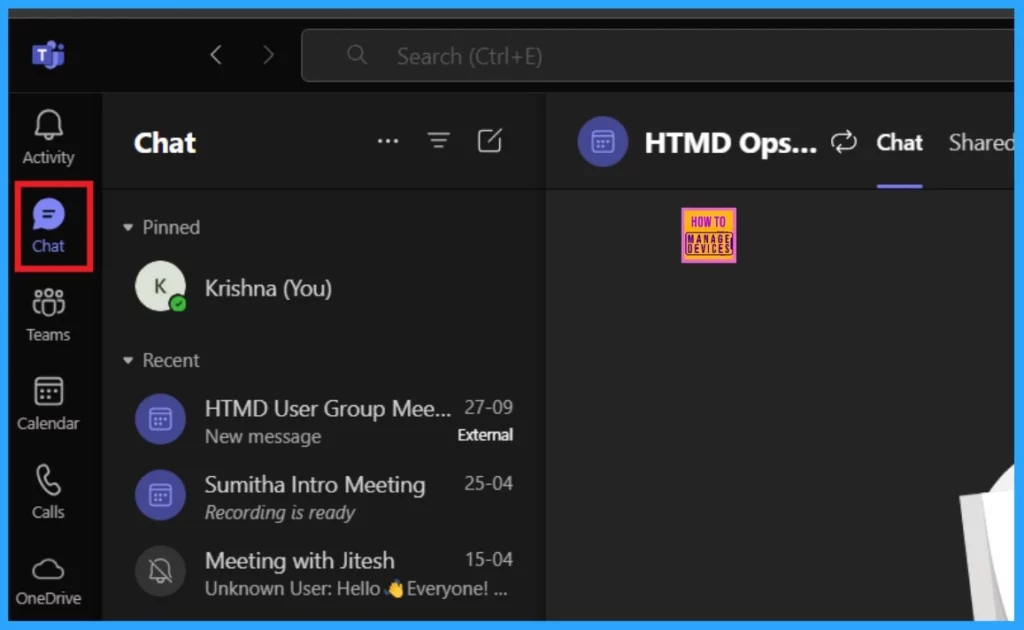
- Open the Microsoft Teams and click on the Chat
- It will open all the chats in your Microsoft Teams
- You can select the Chat you need to open to get the shared files
- This is the best way to open the Chat in a Teams
- Microsoft Classic Teams Reaching to End of Life
- FIX Teams Icon is Missing from the Start Menu FSLogix Issue
- Unified Teams App Launches on All Platforms Windows and Mac
Open a Particular Chat from the Calender
Above, I shared one option to view the chat in Teams; this way, you can open a particular chat from the meeting calendar. First, you have to click on the calendar option and then go to the team meeting scheduled on a calendar.
- Here, you can see that we have a meeting on the calendar
- Click on the Meeting
- Select the Option ”Chat with participants”.

- Turn Off Turn On Notifications in Microsoft Teams Channel Posts
- Introducing Microsoft Teams in VDI
- Enable Disable MS Teams Notify When Available Settings
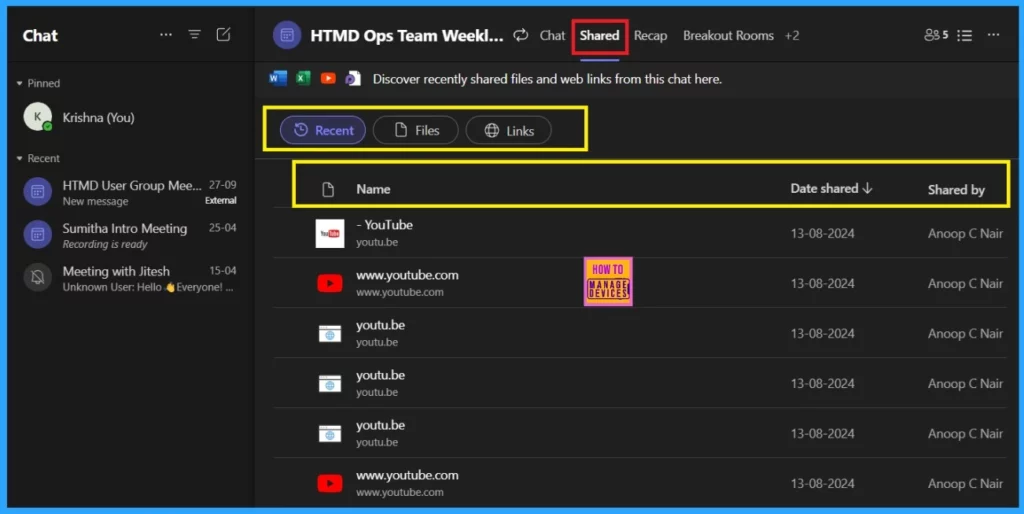
When the Chat opens, you can see many options at the top of the Teams chat, such as chat, shared, Recap, Breakout Rooms, etc. There, you can select the option Shared. When you click that, you can see that all shredded files, links, and docs will be displayed.
| No | keyword filter options |
|---|---|
| 1 | Recent |
| 2 | Files |
| 3 | Links |
- You can filter the files and links here by the name and date shared.
- Also, there is a keyword filter option to select links and files with that keyword.
- It will show only that particular data.
Join the LinkedIn Page and Telegram group to get the latest step-by-step guides and news updates. Join our Meetup Page to participate in User group meetings. Also, Join the WhatsApp Community to get the latest news on Microsoft Technologies. We are there on Reddit as well.
Author
Anoop C Nair has been Microsoft MVP from 2015 onwards for ten consecutive years! He is a Workplace Solution Architect with more than 22+ years of experience in Workplace technologies. He is also a Blogger, Speaker, and Local User Group Community leader. His primary focus is on Device Management technologies like SCCM and Intune. He writes about technologies like Intune, SCCM, Windows, Cloud PC, Windows, Entra, Microsoft Security, Career, etc.




Discussion