






Set Minimum OS Version for Win32 Apps Deployment from Intune
Let’s learn how to set the minimum OS version for Win32 Apps from Intune. With Intune, admins can deploy and manage Win32 apps on Windows devices and also set minimum OS version requirements for these apps.
Starting from Intune Service Release 2303, Additional OS options include Windows 11, Windows 10 21H2, and version 22H2 support for Windows app (Win32) applications.
Once the Win32 app deployment is created, Intune will automatically check the device’s OS version before installing the app. If the device meets the minimum OS version requirements, the Win32 app will be installed. If the device does not meet the requirements, the Win32 app will not be installed.
It’s important to note that some Win32 apps may not be compatible with Windows 11, even if they meet these additional minimum OS version requirements. Users should check with the app developer or vendor to confirm compatibility before attempting to install the app on Windows 11.

Before adding a Win32 app to Microsoft Intune, you must prepare the app using the Microsoft Win32 Content Prep Tool. You use the Microsoft Win32 Content Prep Tool to pre-process Windows classic (Win32) apps, Intune Win32 App Deployment Step By Step Guide.
- Insights Of Microsoft Intune Suite Roadmap From Microsoft Secure Event
- Explore New Devices Experience In Intune Admin Portal
Set Minimum OS Version for Win32 Apps Deployment from Intune
You can use the following steps to add or modify the minimum Operating system with the selected application directly from the Properties pane of the Application node in the Intune Admin Portal.
- Sign in to the Microsoft Intune admin center https://intune.microsoft.com/.
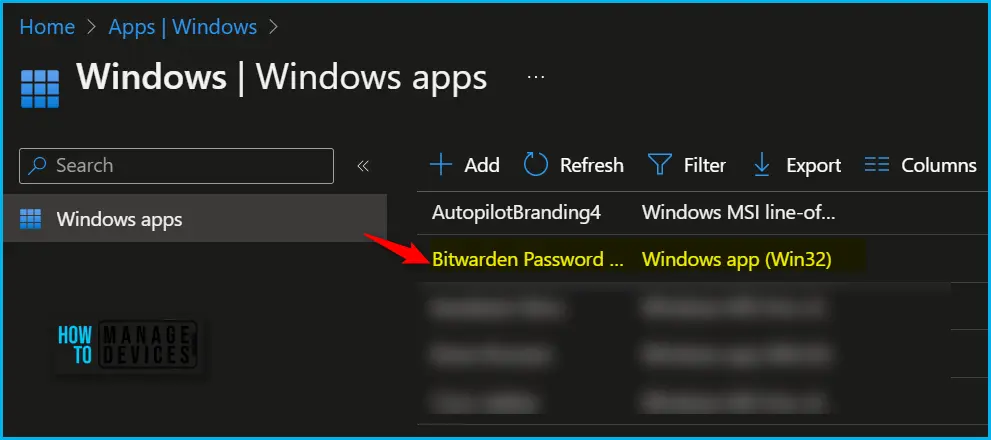
- Select Apps > Windows. Select the existing application from the list if you want to add additional OS version requirements.
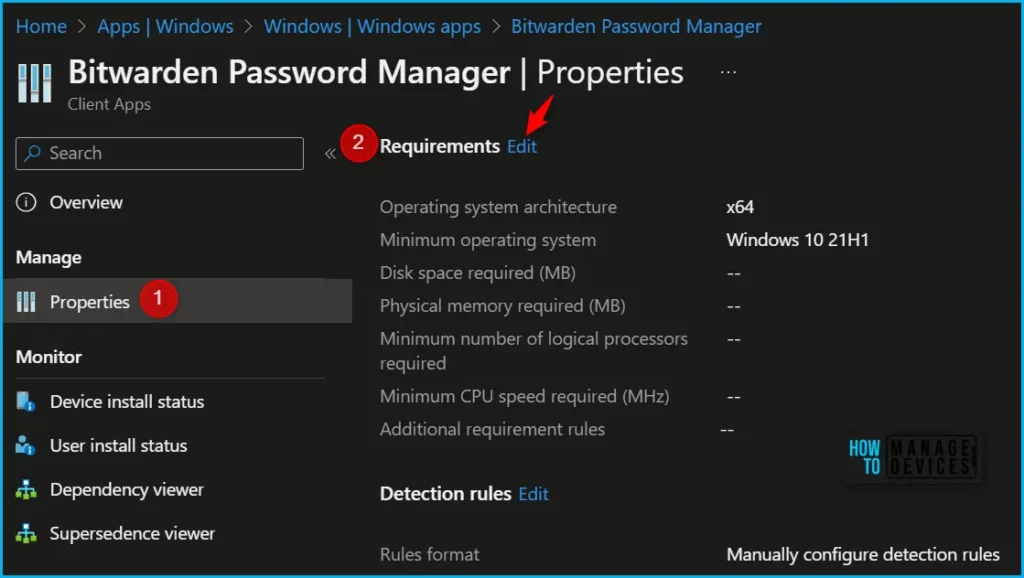
Setting minimum OS version requirements for Win32 apps from Intune is straightforward. Select the application and select Properties. Click on Edit in the Requirements tab.
| Requirements | OS Version |
|---|---|
| Minimum operating system | Windows 11 21H2 |
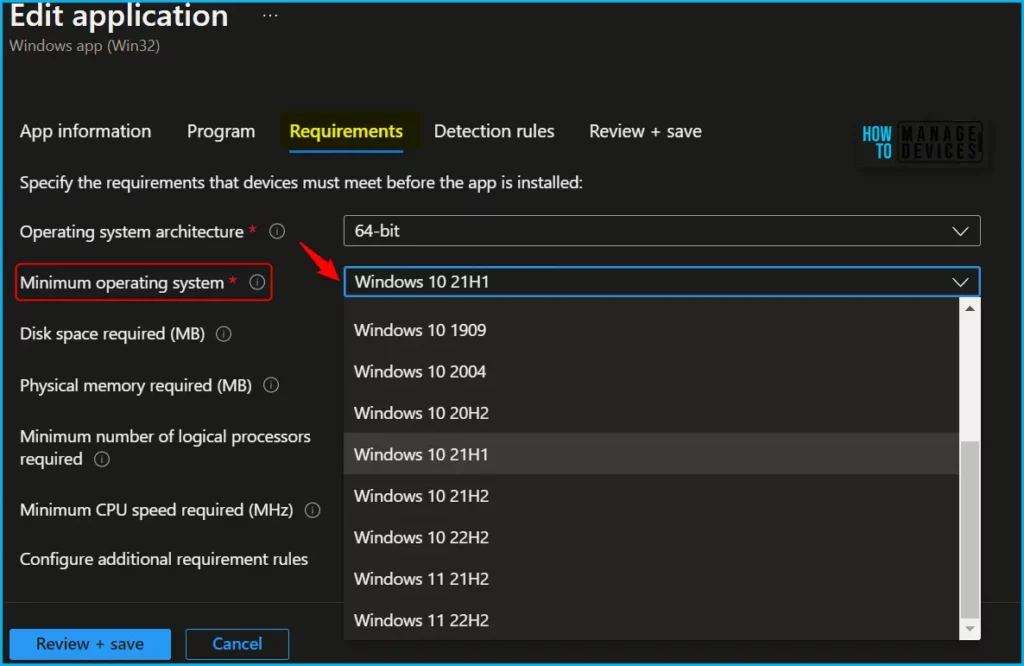
Intune supports additional minimum operating system versions for Windows 10 and 11 when installing Win32 apps. Select one of the available operating systems. Additional OS options include the following:
- Windows 10 1607
- Windows 10 1703
- Windows 10 1709
- Windows 10 1803
- Windows 10 1809
- Windows 10 1903
- Windows 10 1909
- Windows 10 2004
- Windows 10 20H2
- Windows 10 21H1
- Windows 10 21H2
- Windows 10 22H2
- Windows 11 21H2
- Windows 11 22H2
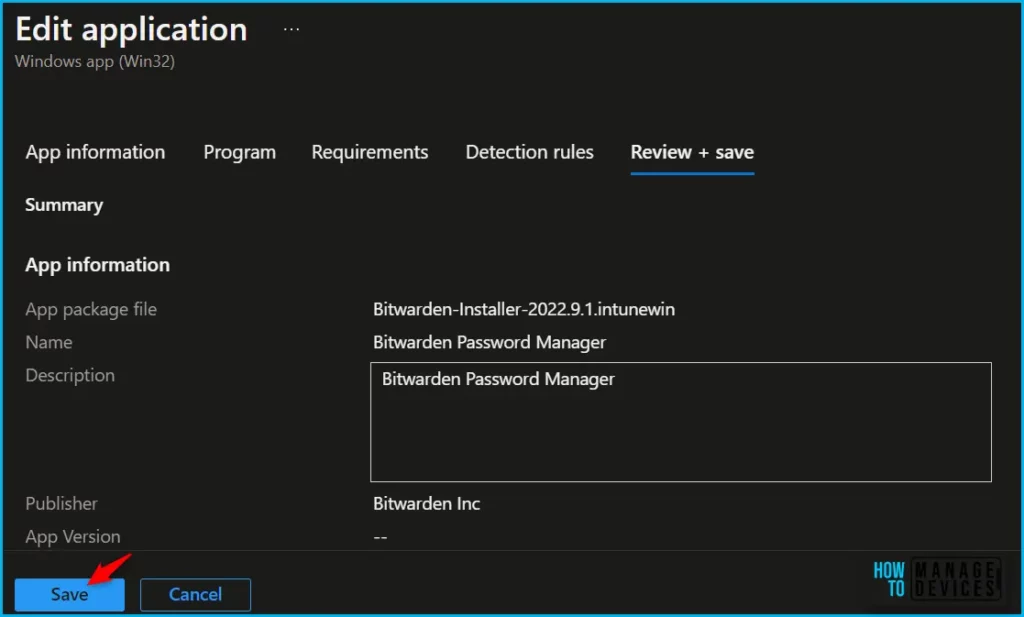
Once you have selected the minimum operating system for your application, click Next and complete all the steps. In the last Review + save, it should appear as shown below. Click Save to confirm.
A notification will appear automatically in the top right-hand corner with a message. Here you can see, Application saved successfully.
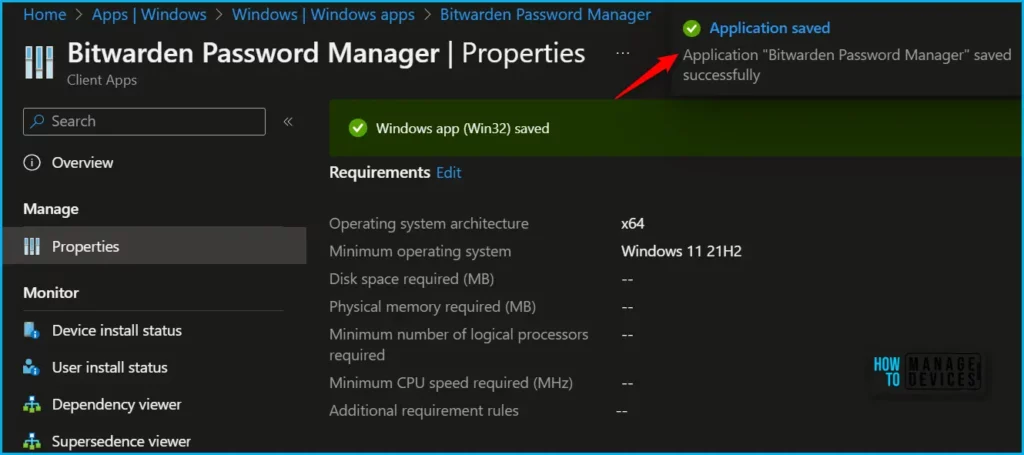
Add Minimum Operating System from Create Intune Win32 Apps Wizard
In the “Minimum operating system” section, you can select the minimum operating system version required for the app to run. This can be any version of Windows 10 or later.
Sign in to the Microsoft Intune admin center. Select Apps > Windows > Add. On the Select app type pane, under the Other app types, select Windows app (Win32).
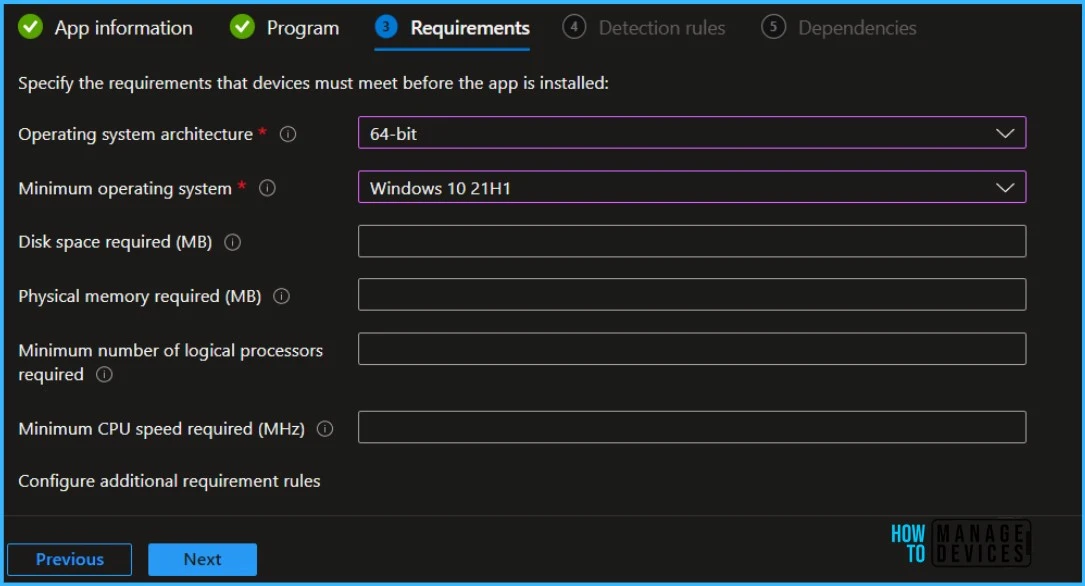
Complete all the steps that appear during app creation. On the Requirements page, specify the mandatory requirements that devices must meet before installing the update and click Next.
- Operating system architecture: Choose the architectures needed to install the selected app.
- Minimum operating system: Select the minimum operating system.
In summary, setting minimum OS version requirements for Win32 apps from Intune is an essential security measure for organizations that want to ensure their devices are up-to-date and secure. With Intune, administrators can easily set and enforce these requirements for Win32 apps across their device fleet, ensuring that their devices are protected against known vulnerabilities and security threats.
Author
About Author – Jitesh, Microsoft MVP, has over six years of working experience in the IT Industry. He writes and shares his experiences related to Microsoft device management technologies and IT Infrastructure management. His primary focus is Windows 10/11 Deployment solution with Configuration Manager, Microsoft Deployment Toolkit (MDT), and Microsoft Intune.


Discussion