






Transform On Screen Tables into Ready to Use Excel Data with a Single Click
HI, today we are discussing Transform on Screen Tables into Ready to Use Excel Data with a Single Click. Click to Do is a new AI-powered capability designed to simplify everyday tasks by turning what you see on your screen into something you can immediately work with. It reduces the need for repetitive manual steps and helps user’s complete tasks faster with just a single click.
This feature is built to support workflows where information often comes from many different sources and formats. In a world where professionals deal with PDFs, emails, images, and web pages every day, Click to Do provides a simple and easy solution to handle information quickly. Instead of wasting time copying or typing data, users can instantly convert what they are looking at into a usable format.
The overall goal of Click to Do is to save time, reduce effort, and remove barriers between the information you receive and the work you need to complete. By automating some of the most common and time-consuming tasks, it helps people work smarter and get more value out of every moment spent at their PC.
One of the most powerful features of Click to Do is its ability to take any table shown on your screen and convert it directly into a clean, Excel spreadsheet. It does not just copy the numbers, and it understands the layout, headers, and rows, placing everything neatly where it belongs.

Table of Contents
The New Click to Do Transforming on Screen Tables into Ready to Use Excel Data
This entire process is powered by advanced on-device AI available in Copilot+ PCs. With the high-performance NPU, the conversion happens instantly and securely on your own device, keeping your data private while delivering fast, accurate results. It eliminates manual transcription and keeps your workflow efficient
- Introducing New Outlook Email Priority by Copilot Settings by Copilot
- Top 4 Security Copilot Use Cases and Prompts for Entra Shared by Microsoft
- New Capabilities in Microsoft Copilot for Security
How this Works
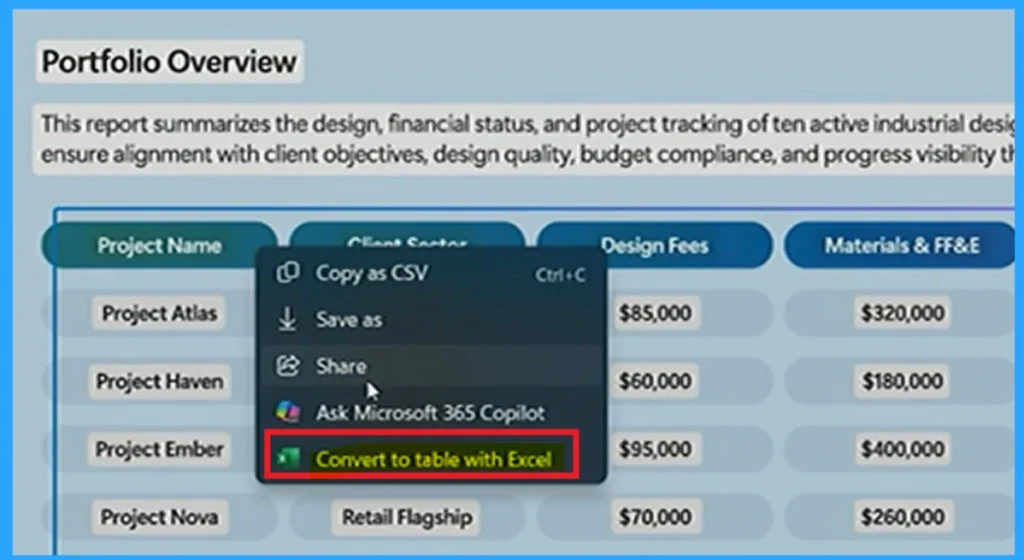
Click to Do makes it easy to take any table from a webpage or document and move it straight into Excel. By right-clicking on the table, you get an option called “Convert to table with Excel.” When you select this, Excel automatically captures the entire table, including headers and values, without needing to copy and paste.
Agent Mode in Excel makes it easier to work on your spreadsheet by letting Copilot edit the workbook directly. When you turn it on from the Copilot panel, you can ask it to add columns, clean up data, create formulas, or fix the table for you. Instead of doing everything manually, you just tell Copilot what you want, and it updates the sheet on its own.
This becomes very helpful after you bring a table into Excel using Click to Do. Once the data is ready, Agent Mode can quickly analyze it, make changes, or create charts based on your prompt. With Agent Mode turned on, you can simply type what you need.
- Instead of manually selecting data and choosing chart options, you just give a clear instruction in simple language.
- Copilot understands the request and starts working on it immediately.
| Prompt |
|---|
| In agent mode give prompt like- “Build me a graph to see how we’re doing across projects on budget vs. actuals“ |

| Prompt |
|---|
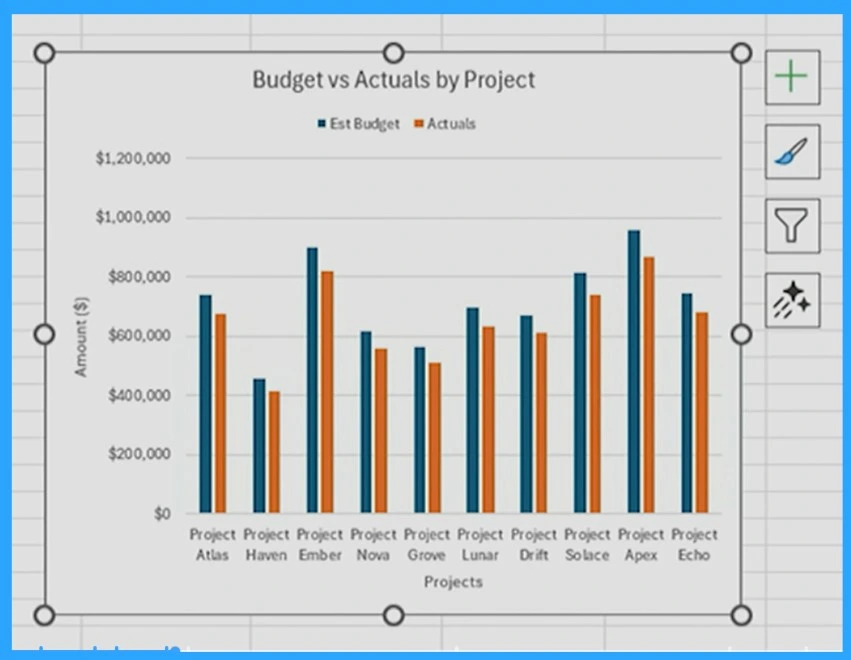
| Build me a graph to see how we’re doing across projects on budget vs. actuals |
This makes creating visual reports much faster and easier. Copilot reads the data in your spreadsheet, picks the right chart type, and builds the graph for you. It saves time, reduces steps, and helps you quickly understand how your projects are performing without doing the work yourself.
Need Further Assistance or Have Technical Questions?
Join the LinkedIn Page and Telegram group to get the latest step-by-step guides and news updates. Join our Meetup Page to participate in User group meetings. Also, Join the WhatsApp Community to get the latest news on Microsoft Technologies. We are there on Reddit as well.
Author
Anoop C Nair has been Microsoft MVP for 10 consecutive years from 2015 onwards. He is a Workplace Solution Architect with more than 22+ years of experience in Workplace technologies. He is a Blogger, Speaker, and Local User Group Community leader. His primary focus is on Device Management technologies like SCCM and Intune. He writes about technologies like Intune, SCCM, Windows, Cloud PC, Windows, Entra, Microsoft Security, Career, etc.




Discussion