






Windows 10 Files are Locked Can’t Delete Use TakeOwn EXE to Delete the Files
Windows 10 Files are Locked and Can’t Delete. Use TakeOwn EXE and Delete the Files. The good news is that TakeOwn.exe works with Windows 10 versions. TakeOwn.exe is a command-line tool that can take ownership of files and folders.
This tool works well with PowerShell and command prompts. Now, you may think, why Powershell? As part of the PowerShell learning process, I’ve removed command prompt shortcuts from Windows 10 laptops. So, by default, I use PowerShell for everything, not the command prompt.
/D prompt Default answer is used when the current user cannot access the “list folder” in a directory. This occurs while operating recursively (/R) on sub-directories. Valid
values “Y” to take ownership or “N” to skip.
In this post, you will get all the details of Windows 10 Files that are Locked and Can’t Delete. Use TakeOwn EXE to Delete the Files.

| Index |
|---|
| Windows 10 Files are Locked Can’t Delete Use TakeOwn.EXE to Delete the Files |
| Windows 10 Files are Locked |
- Windows 10 How to Remove Uninstall Microsoft Store Apps | Best way to Delete MSI EXE Apps from Windows 10
- July 2024 Windows 10 KB5040427 Patches and 2 Zero-Day Vulnerabilities 142 Flaws
- Windows 10 Version Numbers Build Numbers Major Minor Build Rev
Windows 10 Files are Locked Can’t Delete Use TakeOwn.EXE to Delete the Files
Try checking Windows 10 Files are Locked Can’t Delete Use TakeOwn.EXE to Delete the Files?
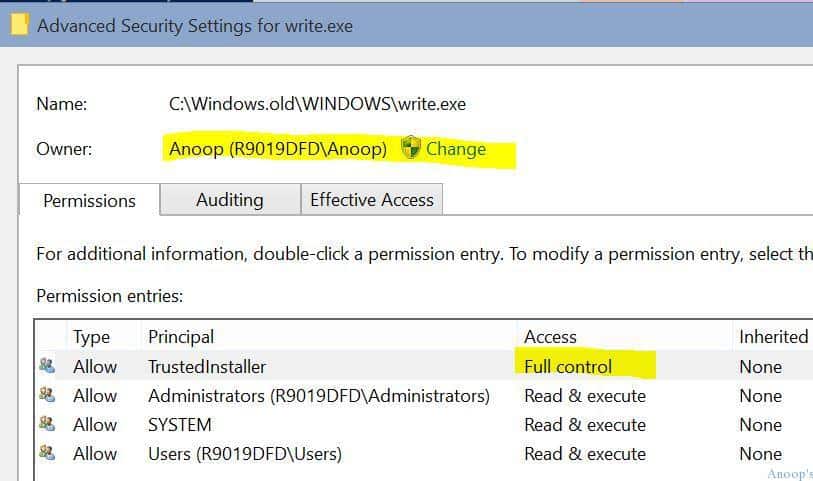
Following are the takeown.exe commands I tried from Powershell and the command prompt.
PowerShell = PS C:\> takeown /f .\Windows.old /r /d y
Command prompt = C:\>takeown /f C:\Windows.old /r /d y
- /F filename Specifies the filename or directory name pattern. Wildcard “*” can be used to specify the pattern. Allows sharename\filename.
- /R Recurse: instructs the tool to operate on files in specified directories and all subdirectories.

Windows 10 Files are Locked
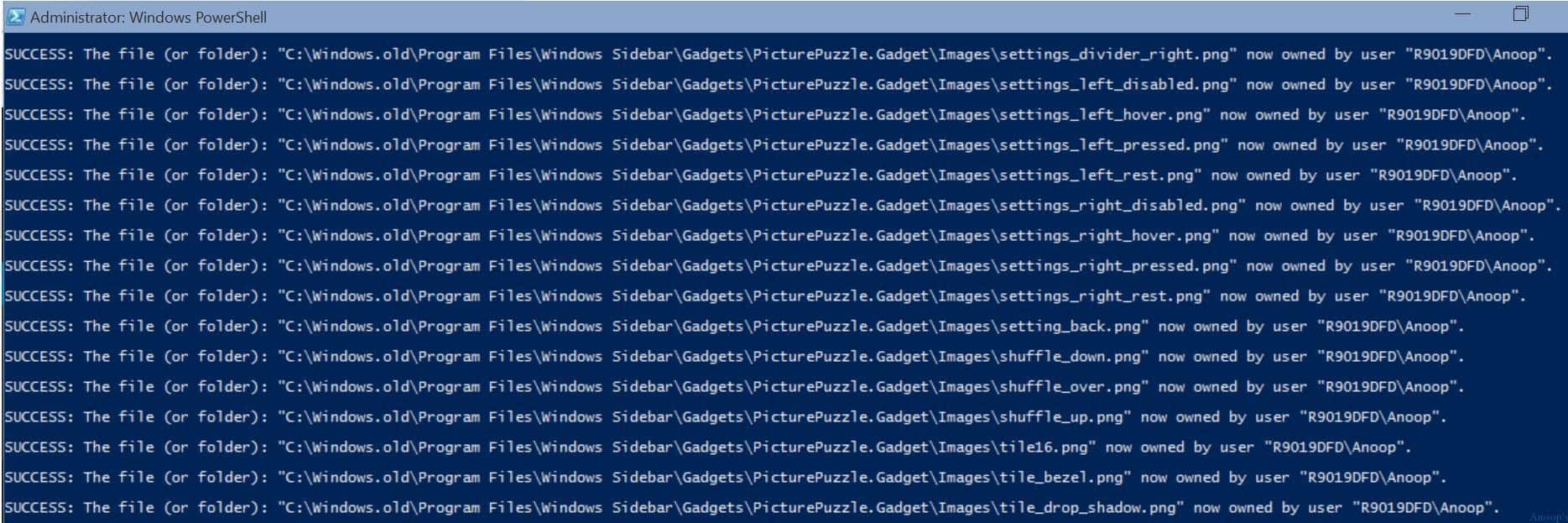
The results of the Take Ownership utility are similar to the screenshot below. This TakeOwn utility can be used when you cannot delete any files or folders, even if you have full admin access on your Windows Machine. Random files getting locked and can’t be deleted is a very common problem in Windows.
In case TakeOwn.exe doesn’t work for you, I would suggest trying PSEXEC with system account/machine account privileges to delete a file or folder from a Windows 10 machine. I’ve explained this process here: “How to Run Application or Process from SYSTEM Context or Account“.
SUCCESS: The file (or folder): "C:\Windows.old\WINDOWS\winsxs\x86_wwf-system.workflow.activities_31bf3856ad364e35_6.1.7601.17514_none_346d5ccdd640c664\System.Workflow.Activities.d
ll" now owned by user "ACN\Anoop".
SUCCESS: The file (or folder): "C:\Windows.old\WINDOWS\winsxs\x86_wwf-system.workflow.componentmodel_31bf3856ad364e35_6.1.7601.17514_none_8deb83646c57c1d5\System.Workflow.Componen
tModel.dll" now owned by user "ACN\Anoop".
SUCCESS: The file (or folder): “C:\Windows.old\WINDOWS\winsxs\x86_wwf-system.workflow.runtime_31bf3856ad364e35_6.1.7601.17514_none_67224784fe4912e9\System.Workflow.Runtime.dll” now owned by user “ACN\Anoop“.
More help on taking the Ownership tool!
Takeown C:/Windows.old\*
PS C:\WINDOWS\system32> Takeown /?
TAKEOWN [/S system [/U username [/P [password]]]]
/F filename [/A] [/R [/D prompt]]
Description
- This tool allows an administrator to recover access to a file denied by re-assigning file ownership.
Parameter List:
- /S system Specifies the remote system to connect to.
- /U [domain\]user Specifies the user context under which the command should execute.
- /P [password] Specifies the password for the given user context. Prompts for input if omitted.
- /F filename Specifies the filename or directory name pattern. Wildcard “*” can be used to specify the pattern. Allows sharename\filename.
- /A Gives ownership to the administrators group instead of the current user.
- /R Recurse: instructs the tool to operate on files in specified directory and all subdirectories.
- /D prompt Default answer is used when the current user does not have the “list folder” permission
on a directory. This occurs while operating recursively (/R) on sub-directories. Valid
values “Y” to take ownership or “N” to skip. - /SKIPSL Do not follow symbolic links. Only applicable with /R.
- /? Displays this help message.
NOTE
- 1) If /A is not specified, file ownership will be given to the
currently logged-on user. - 2) Mixed patterns using “?” and “*” are not supported.
- 3) /D is used to suppress the confirmation prompt.
| Examples |
|---|
| TAKEOWN /? |
| TAKEOWN /F lostfile |
| TAKEOWN /F \\system\share\lostfile /A |
| TAKEOWN /F directory /R /D N |
| TAKEOWN /F directory /R /A |
| TAKEOWN /F * |
| TAKEOWN /F C:\Windows\System32\acme.exe |
| TAKEOWN /F C:\Windows\System32\acme.exe |
| TAKEOWN /S system /F MyShare\Acme*.doc |
| TAKEOWN /S system /U user /F MyShare\MyBinary.dll |
| TAKEOWN /S system /U domain\user /P password /F share\filename |
| TAKEOWN /S system /U user /P password /F Doc\Report.doc /A |
| TAKEOWN /S system /U user /P password /F Myshare\* |
| TAKEOWN /S system /U user /P password /F Home\Logon /R |
| TAKEOWN /S system /U user /P password /F Myshare\directory /R /A |
Resources
Windows 10 Latest Version Of Client Operating System From Microsoft (anoopcnair.com)
We are on WhatsApp now. To get the latest step-by-step guides, news, and updates, Join our Channel. Click here. HTMD WhatsApp.
Author
Anoop C Nair is Microsoft MVP! He is a Device Management Admin with more than 20 years of experience (calculation done in 2021) in IT. He is a Blogger, Speaker, and Local User Group HTMD Community leader. His main focus is on Device Management technologies like SCCM 2012, Current Branch, and Intune. He writes about ConfigMgr, Windows 11, Windows 10, Azure AD, Microsoft Intune, Windows 365, AVD, etc.


Can I use this method to take ownership of and delete folders that contain windows? I have a separate SSD that I need to be empty, but it has Windows on it with some corrupted or deleted files so I can’t log into that SSD itself, upon trying to log in it says that windows is damaged and can’t be accessed. I put that SSD in a different pc to try and delete everything, but at this point, I’ve tried a lot of ways to delete/format an SSD, but they just don’t work. So is it safe to connect it to a different pc and run the takeown.exe command, take ownership and delete those files/folders, will it mess up/corrupt or do something to the main drive of the pc I have it connected to?