






How to Enable Dark Mode in Azure Portal | Simple Steps to Change the Theme | Startup Views
Let’s discuss Enabling Dark mode in Azure portal and the simple steps to change the Theme. The Azure Portal lets you customize the background color or theme to make it more comfortable and easier to use.
You can switch the portal to Dark Mode or pick other themes that change its look. The Azure Portal is a web-based application that allows you to manage and monitor your Microsoft Azure resources in one place. It provides a dashboard for various services, such as virtual machines, databases, storage, networking, etc.
Dark Mode helps reduce eye strain, especially in low-light environments. A darker background with lighter text can make concentrating easier, as it minimizes bright, distracting colors. On devices with OLED or AMOLED screens, Dark Mode can help save battery by using less power for darker pixels.
In this post, you will find easy steps to turn on Dark Mode in the Azure Portal or change its theme. Dark Mode can make the portal easier on your eyes and create a comfortable look for long work sessions. With a few clicks, you can switch to a darker background or try different themes that suit your style.

Table of Contents
What is Dark Mode in the Azure Portal?
Dark Mode is a theme that changes the background of the Azure Portal to a darker color, making it easier on the eyes, especially in low-light environments.
How to Enable Dark Mode in Azure Portal | Simple Steps to Change the Theme | Startup Views
The Appearance + Startup Views pane consists of two main sections. The Appearance section allows you to select your menu behavior, choose a color theme, and decide whether to enable a high-contrast theme. The Startup Views section lets you configure the options and layouts you see when logging into the Azure Portal.
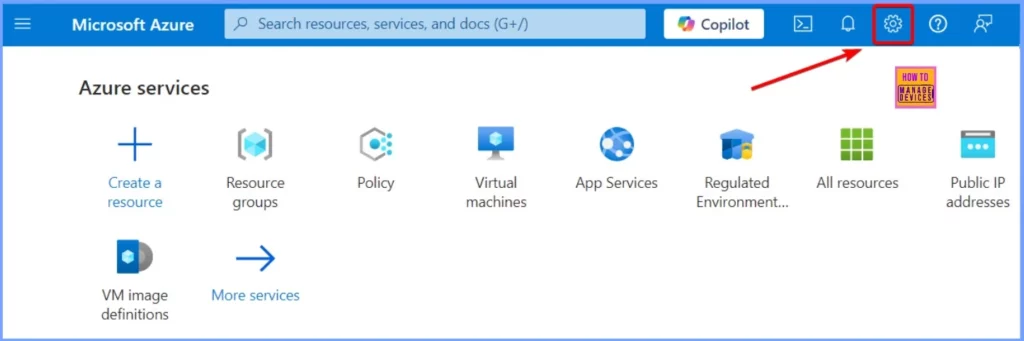
To enable Dark Mode in the Azure Portal or change the theme, begin by logging into the Azure Portal at portal.azure.com. After you’ve signed in, look for the Settings icon (gear icon) located in the top-right corner of the screen.
- Clicking on this icon will open the settings menu, where you can select your preferred theme, including Dark Mode.
- Reboot the VM from Azure Portal Vs Operating System
- Availability Set for Azure VMs Step-by-Step Guide
- Use Managed Identities for Azure Resources | How to Guide
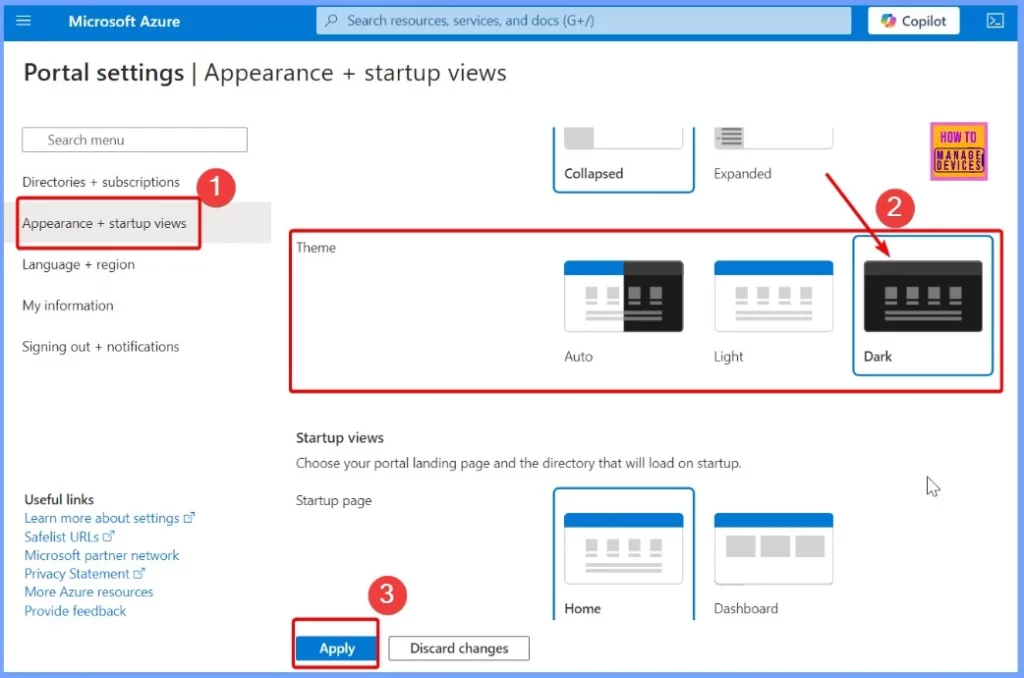
In the Appearance + Startup Views section, you will see options to change the theme of the Azure Portal. Under Theme, you can choose Auto, Light, and Dark options. To enable Dark Mode, click the Dark option and then Apply. This will change the portal’s appearance to a darker theme, making it easier on your eyes.
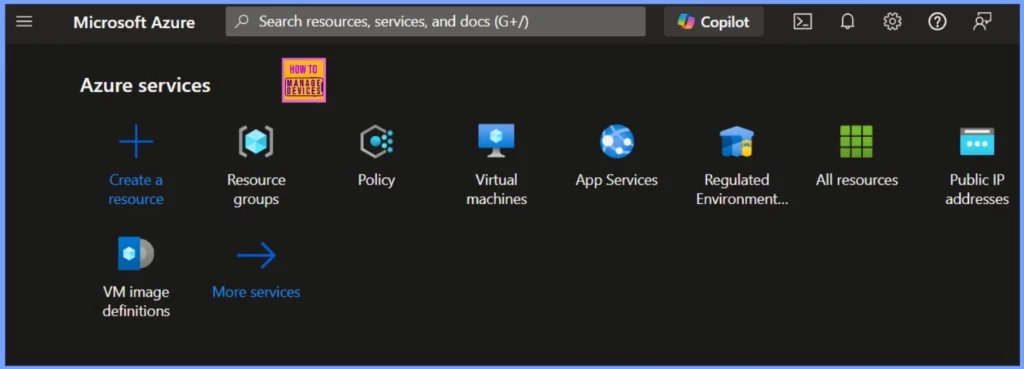
Darkmode Result Image
The image below shows the Microsoft Azure Portal in Dark Mode. The dark background makes the text and options more accessible, and this darker theme can help reduce eye strain, especially in low-light settings.
To switch back to the previous theme, just follow the same steps. In the Theme section, you can choose Light for a classic look or Auto to let the theme change automatically based on your system settings. This will help you switch away from Dark Mode and return to a lighter theme.
Menu Behavior and Service Menu Behavior
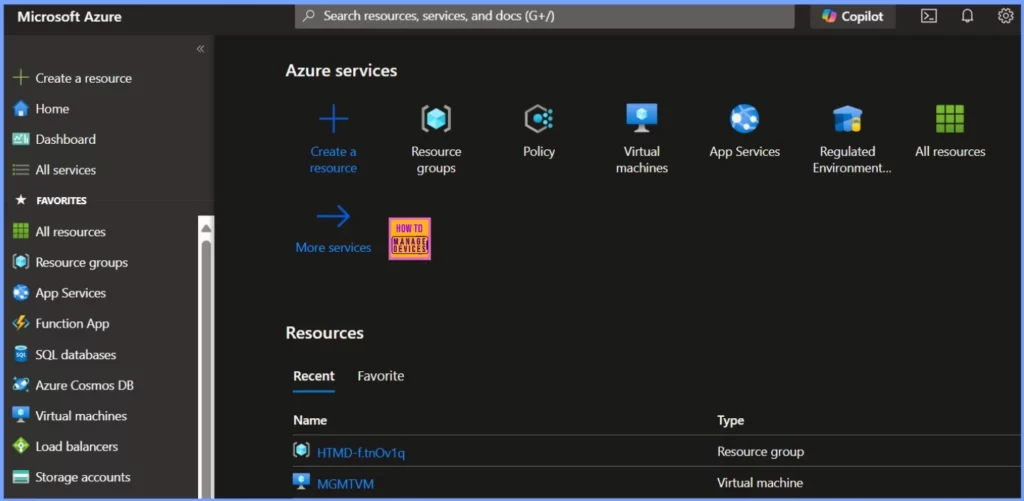
You can easily change your Menu behavior or Service menu behavior. To change the Azure Service Menu to Collapsed, follow these simple steps.
- Sign in to the Azure portal. At the top-right corner, select the Settings icon. Choose Appearance + Startup Views.
- Under Menu behavior, there are two options: Flyout and Docked. Select the Docked option from the below window.
- Under the Service menu behavior, two options are Collapsed and Expanded. Select the Collapsed option from the below window.
| Section | Option | Description |
|---|---|---|
| Menu Behavior | Flyout | The menu is hidden until needed. Click the menu icon in the upper left corner to open or close it. |
| Docked | The menu is always visible. You can collapse it to create more working space. | |
| Service Menu Behavior | Collapsed | Groups of commands in service menus are shown as collapsed. You can select any top-level item to view its commands. |
| Expanded | Groups of commands in service menus are shown as expanded. You can click any top-level item to collapse that group. |
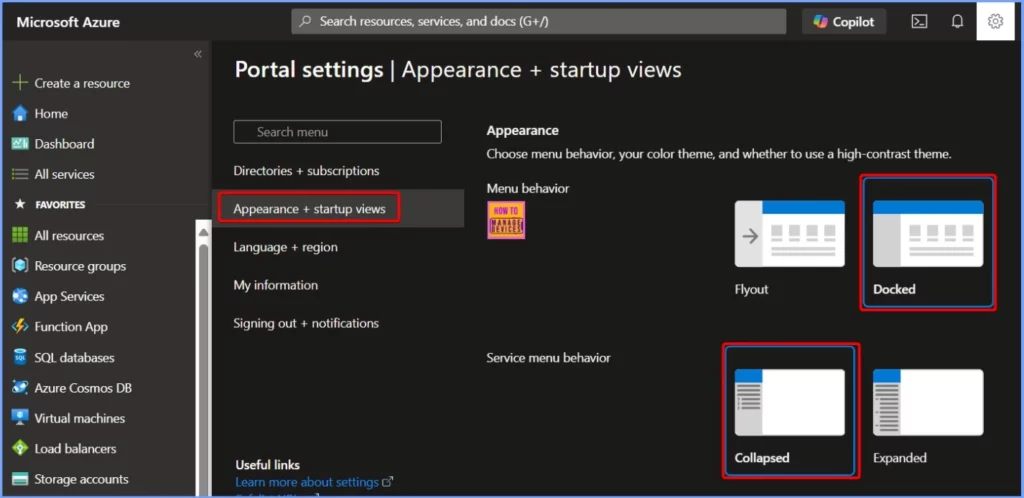
The image below shows the outcome of selecting the Docked option for Menu behavior and the Collapsed option for Service behavior. The Docked menu remains visible but can be collapsed for more workspace, while the Collapsed option minimizes command groups, allowing you to expand them by clicking on top-level items.
Startup Views
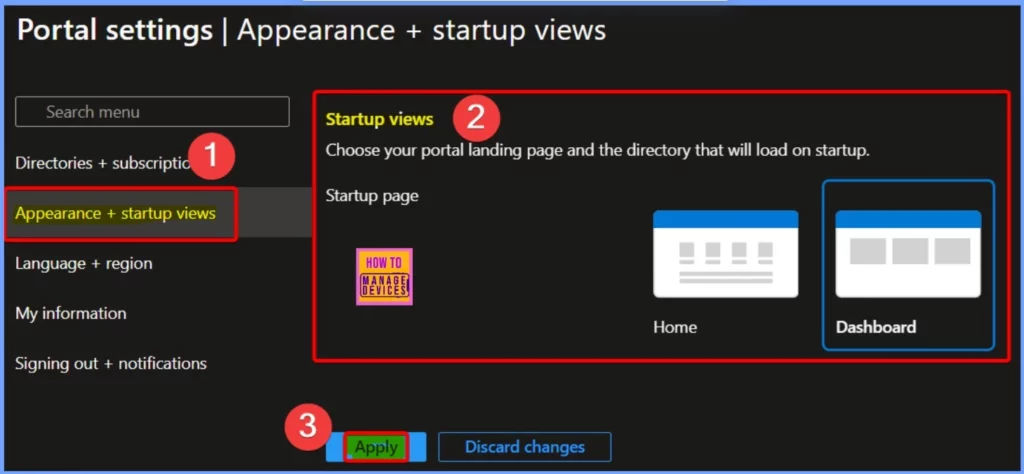
In the Startup Views section, you can choose your portal’s landing page and the directory that will load when you first sign in. This allows you to customize your experience in the Azure Portal by directing you to the most relevant page for your needs, whether it’s your dashboard or another portal area.
- By setting your preferred startup page, you can simplify your workflow and access important information more quickly.
Need Further Assistance or Have Technical Questions?
Join the LinkedIn Page and Telegram group to get the latest step-by-step guides and news updates. Join our Meetup Page to participate in User group meetings. Also, Join the WhatsApp Community to get the latest news on Microsoft Technologies. We are there on Reddit as well.
Author
Anoop C Nair has been Microsoft MVP from 2015 onwards for 10 consecutive years! He is a Workplace Solution Architect with more than 22+ years of experience in Workplace technologies. He is also a Blogger, Speaker, and Local User Group Community leader. His primary focus is on Device Management technologies like SCCM and Intune. He writes about technologies like Intune, SCCM, Windows, Cloud PC, Windows, Entra, Microsoft Security, Career, etc.
Discussion