






AVD Disable Shutdown Button for Windows 10 Devices Using Intune
This post will discuss the AVD Disable Shutdown Button for Windows 10 Devices Using Intune. Let’s find the easiest way to turn off the shutdown button for an AVD (aka Azure Virtual Desktop) VM. AVD VM management with Intune is looking great! This statement applies to all supported AVD, Intune, and Azure AD scenarios.
By harnessing Intune’s capabilities, organizations can strengthen security measures, implement software updates, oversee application management, and monitor the health and performance of their Virtual Machines (VMs) operating on Parallels Desktop.
Intune extends its support to Azure Virtual Desktop personal VMs, treating them comparably to physical desktops running Windows 10 or Windows 11 Enterprise. This alignment enables the utilization of existing configurations to bolster VM security through compliance policy and conditional access.
Intune’s management operates independently of Azure Virtual Desktop management for the same virtual machine.

- Best Intune Guide to Enable Developer Mode in Windows Machines
- What is Azure Virtual Desktop AVD
- Upgrade to Windows 11 using Intune Feature Update Deployment Policy
Registry Hacks – Disable the Shutdown Button for AVD
I think there are probably a lot of registry hacks around turning off the Windows 10 Shutdown button on AVD VMs. Some requirements are to hide other power options on Windows 10 AVD VMs, including Sleep, Hibernate, and Switch Account. One of the following hacks is given below.
Windows Registry Editor Version 5.00
;disable-shut-down-restart-sleep-hibernate-windows-10
[HKEY_CURRENT_USER\Software\Microsoft\Windows\CurrentVersion\Policies\Explorer]"HidePowerOptions"=dword:00000001
[HKEY_LOCAL_MACHINE\SOFTWARE\Microsoft\Windows\CurrentVersion\Policies\Explorer]"HidePowerOptions"=dword:00000001
The Intune policy efficiently disables and blocks Power Options for Windows 10 AVD VMs. This includes blocking shutdown, sleep, hibernate, and switch account functions.
Intune Policy to Disable Shutdown Button for AVD
Let’s understand how to deploy the Intune Policy to Disable the Shutdown Button for AVD.
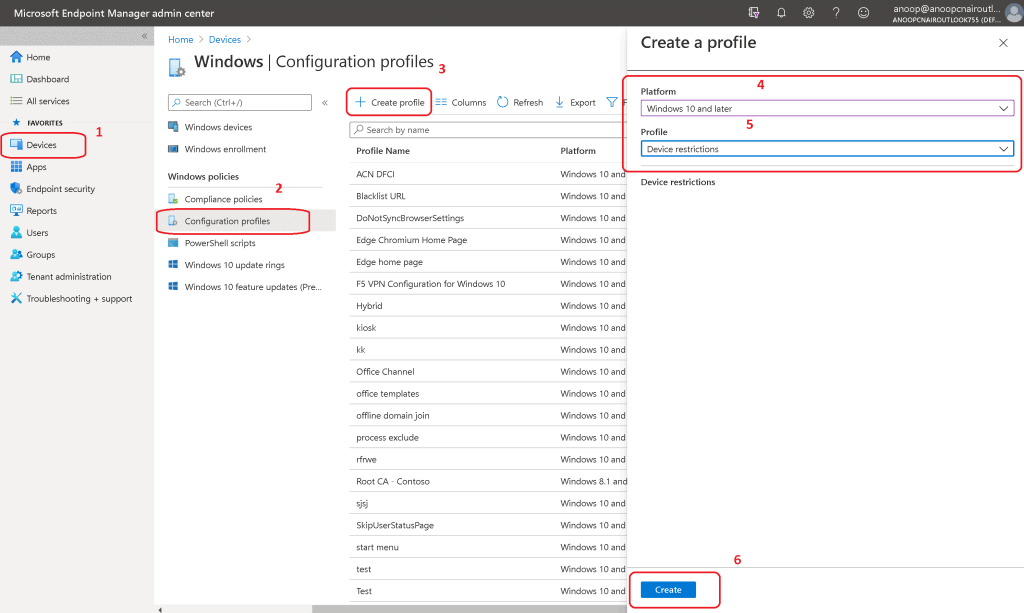
- Login to EndPoint.Microsoft.com (https://endpoint.microsoft.com/)
- Navigate to Devices – Configuration Profiles – + Create Profile
- Select Platform as Windows 10 and Later
- Select Profile as Device Restrictions
- Click on the Create button
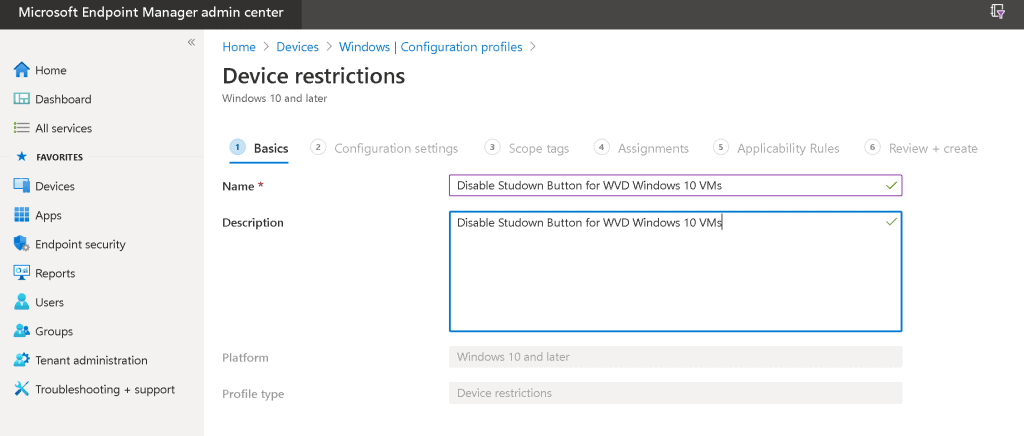
Enter the Name of the Intune Configuration Profile – Disable the Shutdown Button for AVD Windows 10 VMs.
- Enter the Description – Disable the Shutdown Button for AVD Windows 10 VMs.
- Click on the Next button.
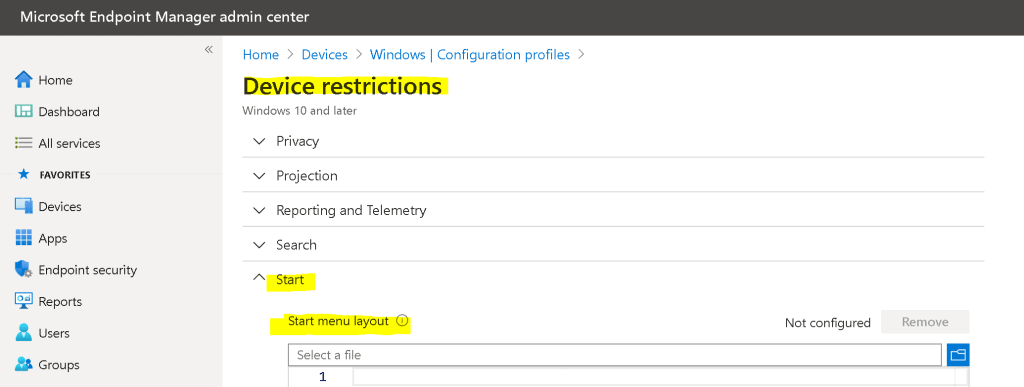
On the Device Restrictions Settings, expand the Start options
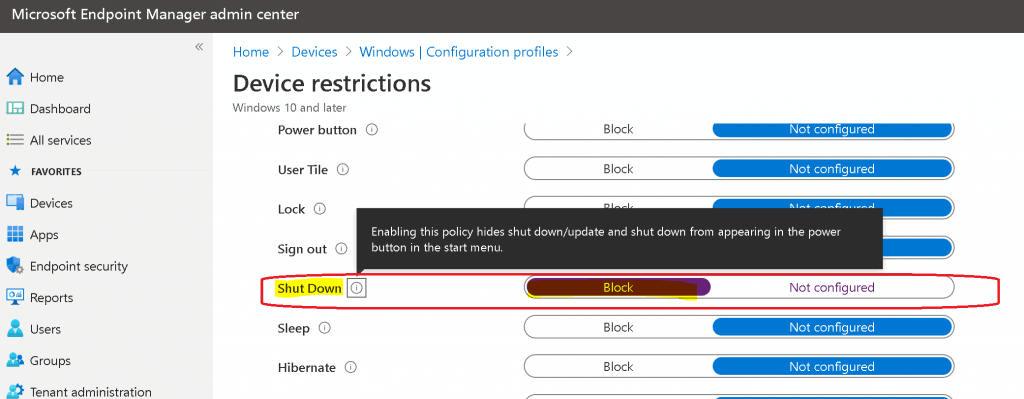
Select the BLOCK option from the Shutdown option. Enabling this policy hides shut down/update and shut down from appearing in the power button in the start menu. Then select the BLOCK option from the Sleep option.
- Select the BLOCK option from the Hibernate option.
- Select the BLOCK option from the Switch Account option.
- Click on the Next button.
Scope Assignment to AVD Disable Shutdown Button Policy
This setting is not mandatory. If you want to learn more about Intune Scope Tags.
- Select the Scope (Tags)
- Click +Add
- Select Tags -> Test
- Click on Select
- Click OK
Assignment
Check the assignment options for the AVD Disable Shutdown Button for Windows 10 Devices Using Intune.
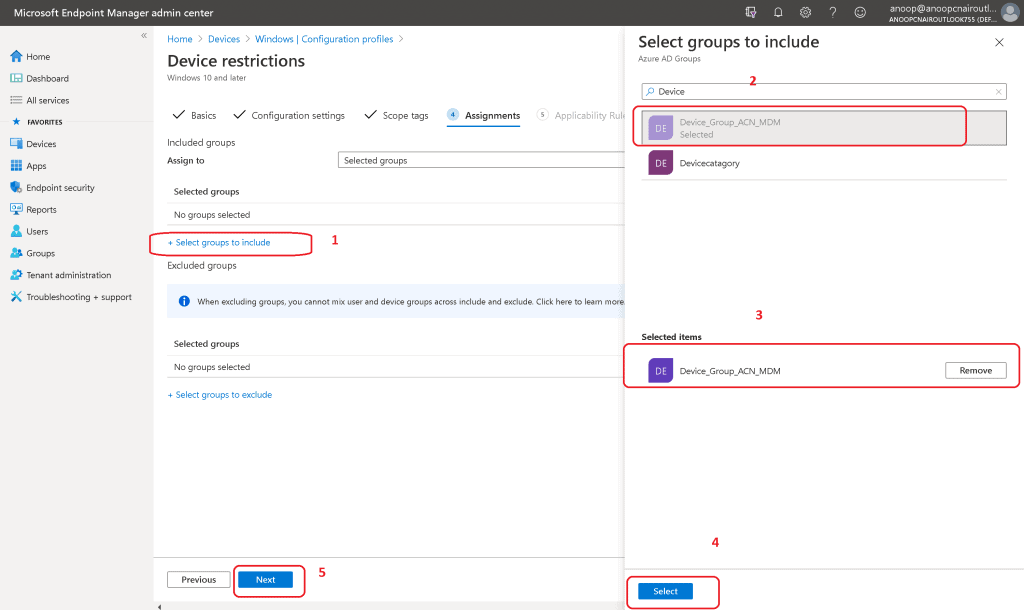
- Click on + Select Groups to Include.
- Search for Azure AD Device Group which you want to Disable the Shutdown button on AVD Windows 10 devices.
- Click on the group – Device_Group_ACN_MDM.
- Click on the Select button.
- Click on the Next button to continue.
Click on the Create button to finish the disable shutdown button policy deployment for AVD Windows 10 VMs.
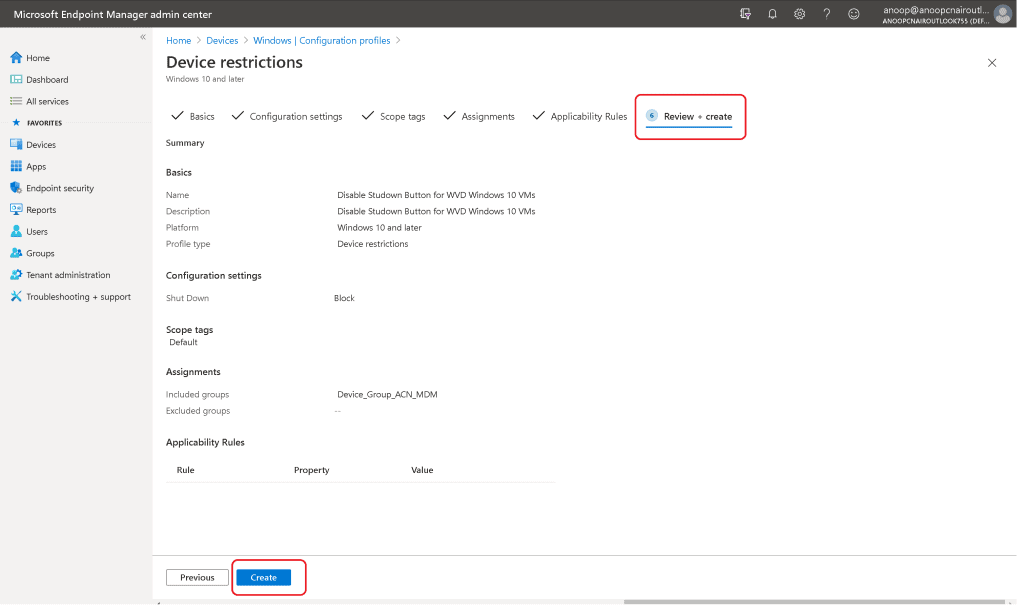
Basics
Name - Disable Studown Button for AVD Windows 10 VMs
Description - Disable Studown Button for AVD Windows 10 VMs
Platform - Windows 10 and later
Profile type - Device restrictions - Configuration settings

Start
Shut Down - Block
Sleep - Block
Hibernate - Block
Switch Account - Block

Scope tags - Default
Assignments - Included groups - Device_Group_ACN_MDM
Excluded groups - NA
--
Applicability Rules - NA
Results – AVD Disable Shutdown Button
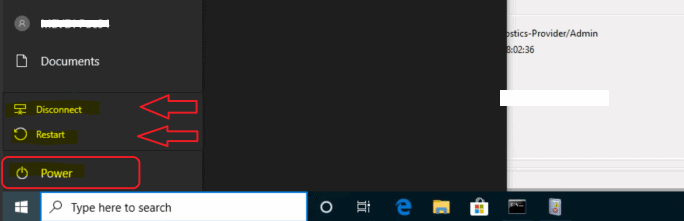
The only options available in the Power option are Restart and Disconnect. There is no option to shut down the AVD VMs.
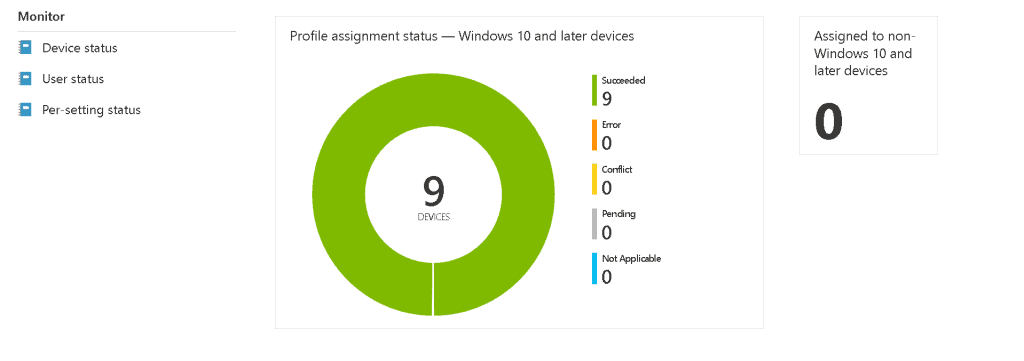
The status of Block Shutdown from Intune Portal.
Resources
We are on WhatsApp. To get the latest step-by-step guides and news updates, Join our Channel. Click here –HTMD WhatsApp.
Author
Anoop C Nair is Microsoft MVP! He is a Device Management Admin with more than 20 years of experience (calculation done in 2021) in IT. He is a Blogger, Speaker, and Local User Group HTMD Community leader. His primary focus is Device Management technologies like SCCM 2012, Current Branch, and Intune. He writes about ConfigMgr, Windows 11, Windows 10, Azure AD, Microsoft Intune, Windows 365, AVD, etc.




StaffBlank msg
I have a maybe related issue where on some of my Lenovo laptops, the suspend option is not being displayed when clicking the Power button. The configuration for Sleep on the Start menu is “Not specified”, and the only other choice is “Blocked” – how do I specify to force the display of the Sleep option?
I was wondering if you knew of a way to apply this to Multi-Session AVDs? The settings applied to the single session AVDs perfectly but says not applicable for the Pooled AVDs.
When I use Ctrl+Alt+Del I can still see the Shutdown button from there. Any fix for that?
Staff😀 Ctrl+Alt+Del is the physical PCs shutdown button not the AVD Remote Desktops shutdown button. Check out AVD keyboard shortcuts from https://www.anoopcnair.com/new-windows-11-keyboard-shortcuts-update/
Try CTRL+ALT+END instead.