






Entra Refresh Tokens Valid for 90 Days Key Actions based on your Licensing Entra ID Free E3 P1 and E5 P2
Let’s discuss Entra Refresh Tokens Valid for 90 Days Key Actions Based on Your Licensing Entra ID Free E3 P1 and E5 P2. Microsoft extended the default validity of the Entra Refresh token to 90 days. Before the recent update, the validity of tokens was typically 14-90 days, depending on the configuration.
Refresh tokens themselves do not require a specific license. However, your organization’s ability to configure and manage them effectively depends on the type of licensing it has with Microsoft. Key actions include Conditional Access Policies, Token Protection, Regular Credential Updates, etc.
Do you know what a Refresh token is? In the OAuth 2.0 authorization framework, refresh tokens are used to obtain a new access token without requiring the user to re-authenticate. They are issued along with the access token.
To enhance security, you can take specific actions depending on your licensing. In this blog post, I will share more information about Entra Refresh Tokens, Valid for 90 Days – Key Actions Based on Your Licensing.


Table of Contents
Entra Refresh Tokens Valid for 90 Days Key Actions Based on Your Licensing
As mentioned above, you can take specific actions depending on licensing. These measures help improve security and manage access more effectively. The table below shows the specific actions and their details.
| Specific Actions | Details |
|---|---|
| Entra ID Free | Set directory-level portal time-out |
| E3 / Entra ID P1 | Configure sign-in frequency for all admin roles. |
| E5 / Entra ID P2 | Enable Privileged Identity Management (PIM) for admin roles and enable risk-based Conditional Access. |
- New Least Privilege Microsoft Graph Permissions in Entra Strengthen your App Security
- New Entra RBAC Role People Administrator Details
- Top 3 Key Entra Security Priorities for 2025 Proactive Identity and Access Security
Entra ID Free – Directory Level Portal Time Out
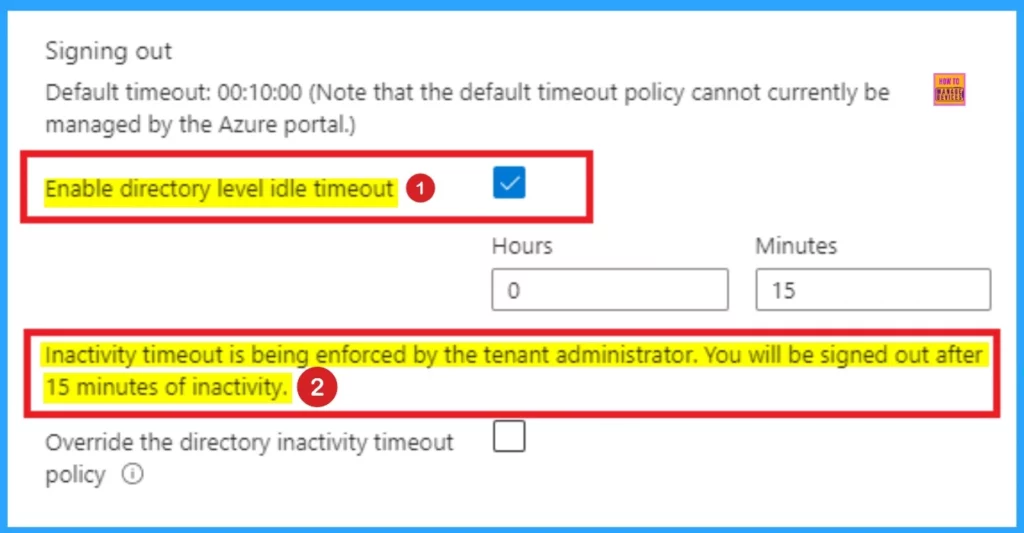
Users with the Global Administrator role can enforce the maximum idle time before a session is signed out. This inactivity timeout setting applies to all users in the Azure tenant; Global Administrators can’t specify different settings for individual users in the tenant. Follow the list to enforce an idle timeout setting for all users of the Azure portal.
- Login to Azure Portal as Global Administrator Account
- Select Enable directory level idle timeout.
- Enter the Hours and Minutes for the maximum time a user can be inactive before their session is automatically signed out.
- Click on the Apply button.
E3 / Entra ID P1 – Configure a Sign Frequency for All Admin Roles
Entra ID P1 (formerly known as Azure Active Directory P1) is an identity and access management service that provides features like Conditional Access, Identity Protection, and advanced group management.
When combined, Microsoft 365 E3 includes Entra ID P1, offering organizations robust security and identity management capabilities and productivity tools. The following steps are to configure Sign in Frequency for All Admin Roles.
- Open Microsoft Entra admin center
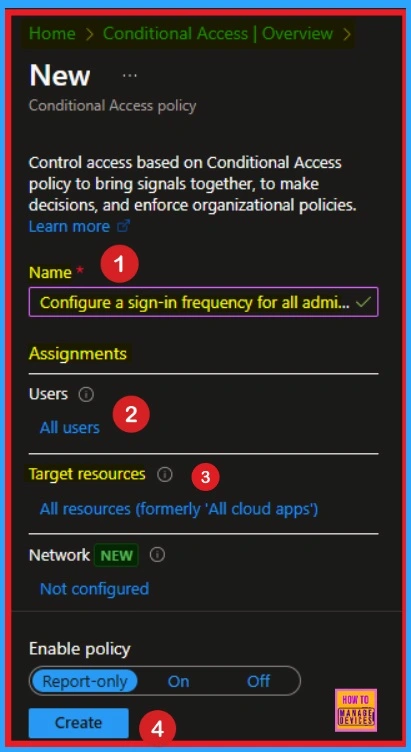
- Navigate Protection > Conditional Access > Policies
- Create New Policy
- Name – Configure a Sign-in Frequency for All Admin Roles
- Select users and group
- Select Cloud apps under targets cloud apps
E5 / Entra ID P2 – Enable PIM for Admin Roles
Microsoft 365 E5 includes Entra ID P2, which provides advanced security and identity management features. The following are the steps to enable PIM for Admin Roles.
- Open Microsoft Entra admin center
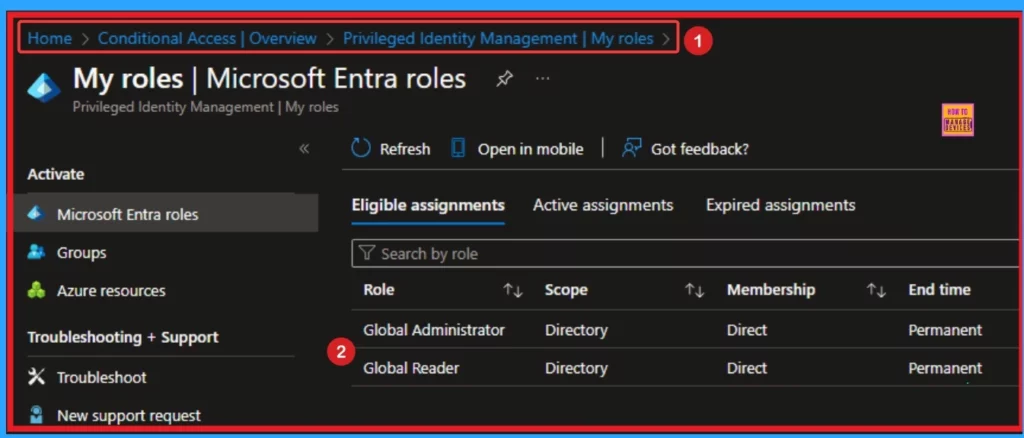
- Navigate to Identity Governance > Privileged Identity Management
- Go to Roles and Select the Role
Need Further Assistance or Have Technical Questions?
Join the LinkedIn Page and Telegram group to get the latest step-by-step guides and news updates. Join our Meetup Page to participate in User group meetings. Also, Join the WhatsApp Community to get the latest news on Microsoft Technologies. We are there on Reddit as well.
Resource
Manage Azure portal settings and preferences
Author
Anoop C Nair has been Microsoft MVP from 2015 onwards for 10 consecutive years! He is a Workplace Solution Architect with more than 22+ years of experience in Workplace technologies. He is also a Blogger, Speaker, and Local User Group Community leader. His primary focus is on Device Management technologies like SCCM and Intune. He writes about technologies like Intune, SCCM, Windows, Cloud PC, Windows, Entra, Microsoft Security, Career, etc.
Discussion