






Turn Off Turn On Notifications in Microsoft Teams Channel Posts
Microsoft Introduced Managing Notifications in Microsoft Teams Channel Posts. Learn how to Turn Off or Turn On notifications in Teams Channel Posts. As you all know, Microsoft Teams is essential in the workplace nowadays. As teams become more popular, their features grow, too.
With Teams features of smooth integration with other Microsoft 365 tools, Microsoft Teams has changed how users communicate and work together. Recently, it introduced several new functionalities aimed at boosting user productivity. The July update brought significant changes to channels, which are essential components of Teams.
In the July update, you can turn notifications on or off for posts on a Microsoft Teams channel. To use these new features, you must be part of the Teams Public Preview or Microsoft 365 Targeted release and use the new Teams app for Windows or macOS.
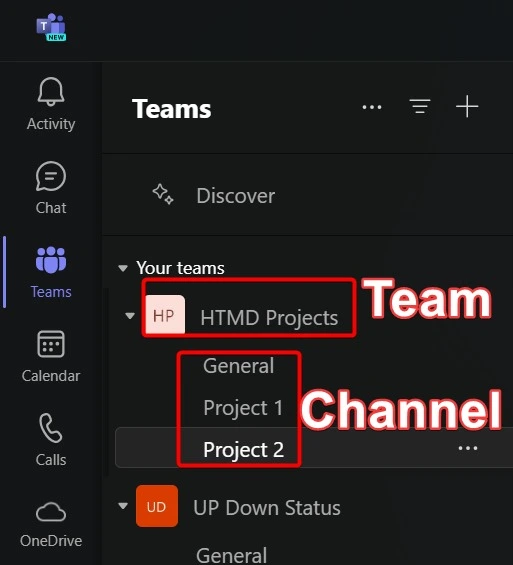
Channels are crucial parts of teams, like a digital room for team members, and they help the user focus on collaboration. We all know that Teams have become necessary in the digital workplace to boost productivity and improve communication. This post discusses this new feature and how to control alerts for specific channel posts.

- Introducing Microsoft Teams in VDI
- Enable Disable MS Teams Notify When Available Settings
- MS Teams Copilot in Meetings to Take Notes and Action
- Drag Teams Presenter Toolbar during Screen Sharing Frustrating Experience is Going to End Soon
- New feature Join Microsoft Teams Rooms with Meeting ID and Passcode on Windows
| Index |
|---|
| Turn Off Turn On Notifications in Microsoft Teams Channel Posts |
| Importance of Notifications in Teams |
| How to Control Alerts for Specific Posts in Channels |
What is MS Teams Channel?
Turn Off Turn On Notifications in Microsoft Teams Channel Posts
Above, we discussed the overall view of Microsoft Teams channels and the new features introduced to them. Microsoft Teams channels received the latest update on managing notifications in Microsoft Teams channel posts. With this, users can reduce notifications and stay focused on the work.
- We recently published the MS Teams channels feature through our post “New Hide General Channel Feature in Microsoft Teams”.
See More: New Hide General Channel Feature in Microsoft Teams
- Call Record Insights for Microsoft Teams
- Microsoft Classic Teams Reaching to End of Life
- Microsoft Introduces Single Microsoft Teams Desktop App for Personal and Work
- New Banner Notification on Teams Classic Client
Importance of Notifications in Teams
You all receive Notifications on MS Teams. Have you ever wondered why notifications are essential in MS Teams? We can say that notifications are just like important Alerts. However, managing notifications in Microsoft Teams is sometimes necessary to stay productive and focused.
Adjusting your notification settings for specific posts and channels can make your work environment more organized and efficient.
| Purposes of Channel Post Notifications in Microsoft Teams | Info |
|---|---|
| Real-Time-Updates | You receive a Notification when someone posts a message. You get notified timely. |
| Visibility | When an ongoing conversation or activity goes through a channel, relevant content can be quickly identified without manually checking the channel. |
| Collaboration | Keep everyone engaged and aware of what’s happening in a channel. |
How to Turn Off or Turn ON Alerts for Specific Posts in Channels
Microsoft Teams introduced a new feature to manage and control notifications using the Turn off Notification option. This option is for the channel’s specific posts.
This will enhance the focus on work by turning off notifications for posts that are not very important. So, Let’s Look into how to turn off notifications in a channel post.
- First, you must go to the post in the channel where you want to change notifications.
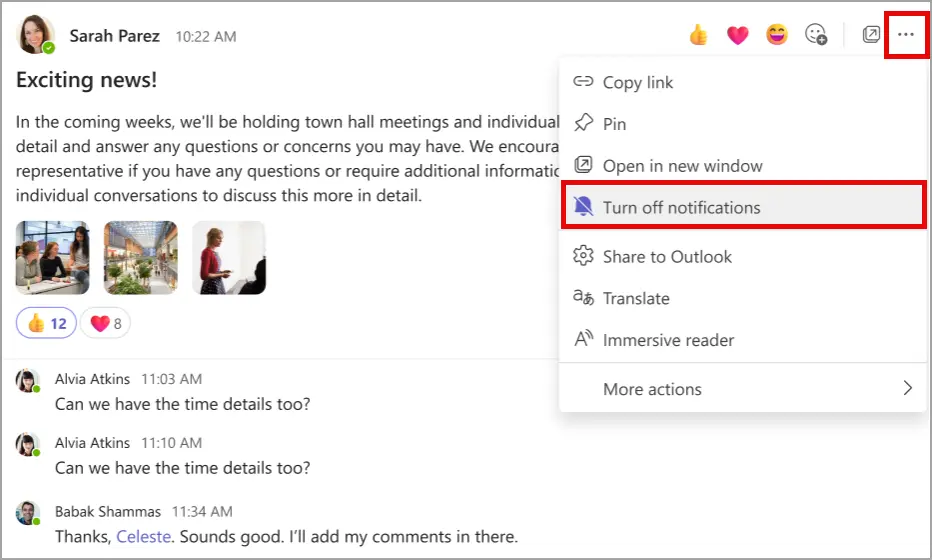
- When you open a post on the channel, the More option (three dots) menu appears in the Right corner of the Post.
- Click on the More Option
- Select Turn off notifications
- To enable your Teams client for the Public Preview
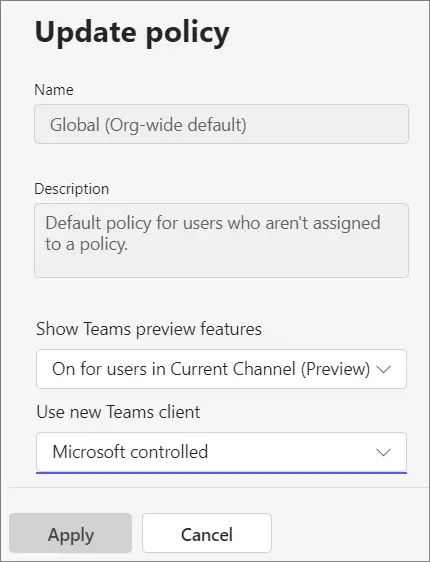
To use these new features, join the Teams Public Preview or Microsoft 365 Targeted release and use the new Teams app for Windows or macOS. IT admins must turn on “Show preview features” in the update settings to enable Public Preview for your Teams app. To set the updated policy,
- Sign in to the Microsoft Teams admin center.
- Select Teams > Teams Update policies.
- Select an existing policy or select Add to create a new one.
- Name the updated policy and add a description.
- Select the setting for “Show Teams preview features”:
We are on WhatsApp. To get the latest step-by-step guides and news updates, Join our Channel. Click here for HTMD WhatsApp.
Author
Anoop C Nair has been Microsoft MVP from 2015 onwards for 10 consecutive years! He is a Workplace Solution Architect with more than 22+ years of experience in Workplace technologies. He is also a Blogger, Speaker, and leader of the Local User Group Community. His main focus is on Device Management technologies like SCCM and Intune. He writes about technologies like Intune, SCCM, Windows, Cloud PC, Windows, Entra, Microsoft Security, Career, etc..



Discussion