






Introducing Microsoft Designer to Create Personalized Invitations
Let’s discuss introducing Microsoft Designer to Create Personalized Invitations. Microsoft Introduced a new feature on Microsoft Designer that allows users to make unique and personalized invitations very quickly. Microsoft Designer will be the best choice for users when making different invitations.
As you all know, Microsoft Designer is one of Microsoft’s best innovations, capable of AI capabilities. Invitations are one of the new features in Microsoft Designer. This new feature helps you create invitations for any event within seconds.
Usually, we use many applications to create invitations for different events. Sometimes, these invitations are similar. The invitation feature on Microsoft Designer will help you design unique invitations for various events by transforming your text description of an event.
Users can quickly create Invitations in Microsoft Designer by providing the occasion, date, time, location, and other relevant details. Invitations generate a custom vertical design perfect for sharing on mobile devices. In this blog post, I will explain more about the invitation feature on Microsoft Designer.

What are the Advantages of Invitation Feature on Microsoft Designer?
1. It allows customizable invitations for different events.
2. Helps to generate invitations within seconds.
3. It will enable editing to create an invitation.
4. Users can easily copy, share and download the Invitation.
5. Helps to add different fonds, brand kit texts, etc.’
6. It provides different templates for generated invitations.
7. Helps to create invitations with AI prompts.
Introducing Microsoft Designer to Create Personalized Invitations
As mentioned above, the Invitation feature works with AI capabilities, including AI-generated artwork as editable text. You can create a suitable look for your invitation by fine-tuning it and making your own. This feature is available on the web to all Microsoft Designer users with a Microsoft account in English.
Different Less Traditional Events Available on Invitation Feature
Microsoft provides a wide range of events for users. I already said that different types of event ideas can be created with the Invitation feature. Less Traditional Event ideas can also be easily created using these features.
Usually, design applications only include traditional events, but Microsoft Designer is unique. The following table shows the different less traditional events available on Microsoft Designer.
| Less Traditional Events Available on Invitation Feature |
|---|
| Team Lunches |
| Happy Hours |
| Talent Shows |
| Sports Tournaments |
| Virtual Meetups |
How does Invitation Feature Work?
You can easily create invitations using Microsoft Designer on any browser. Currently, the Invitation feature on Designer is available on the Web. It is effortless to handle users because it is an AI-powered tool.
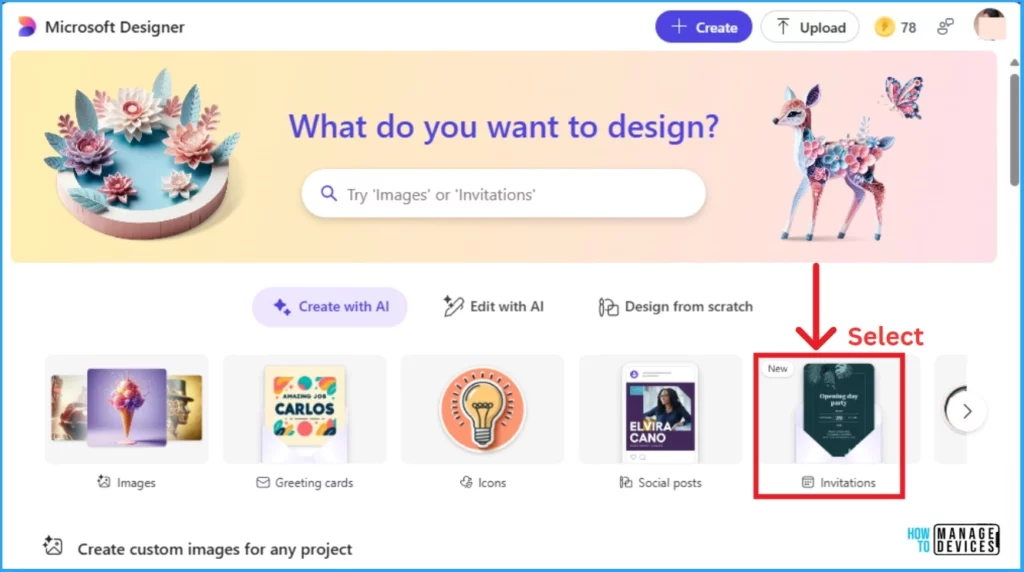
- Open Microsoft Designer and navigate to Invitations.
- Sign into your Microsoft account or create one for free.
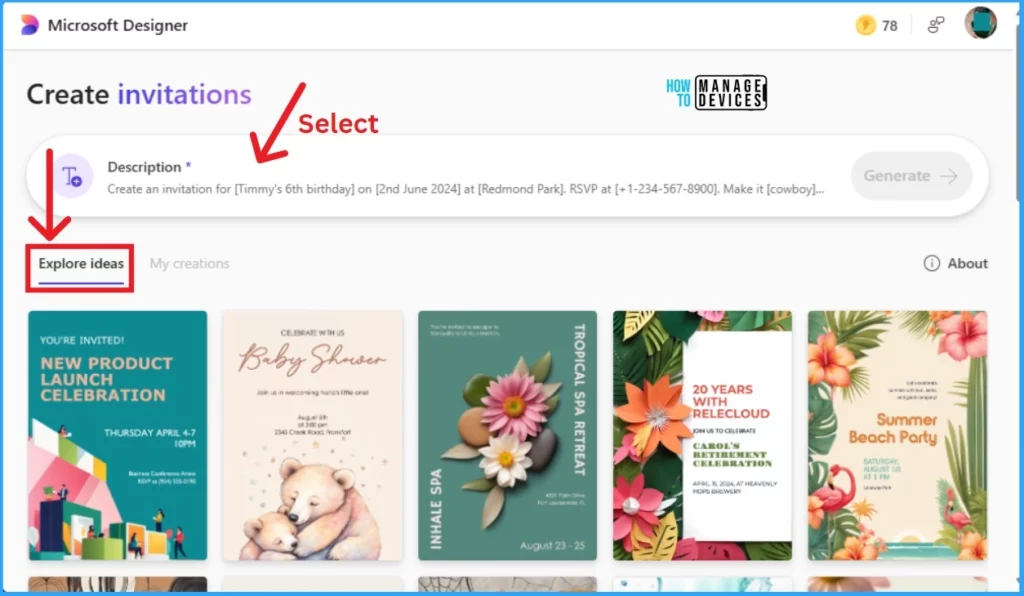
After that, you can see the Invitation feature window. You can see the Explore Ideas tab here for many event options. You can select any Invitation as you wish and select it to customize the same prompt with your event details.
- Select Explore Ideas and select any Invitation option.
- Select Description.
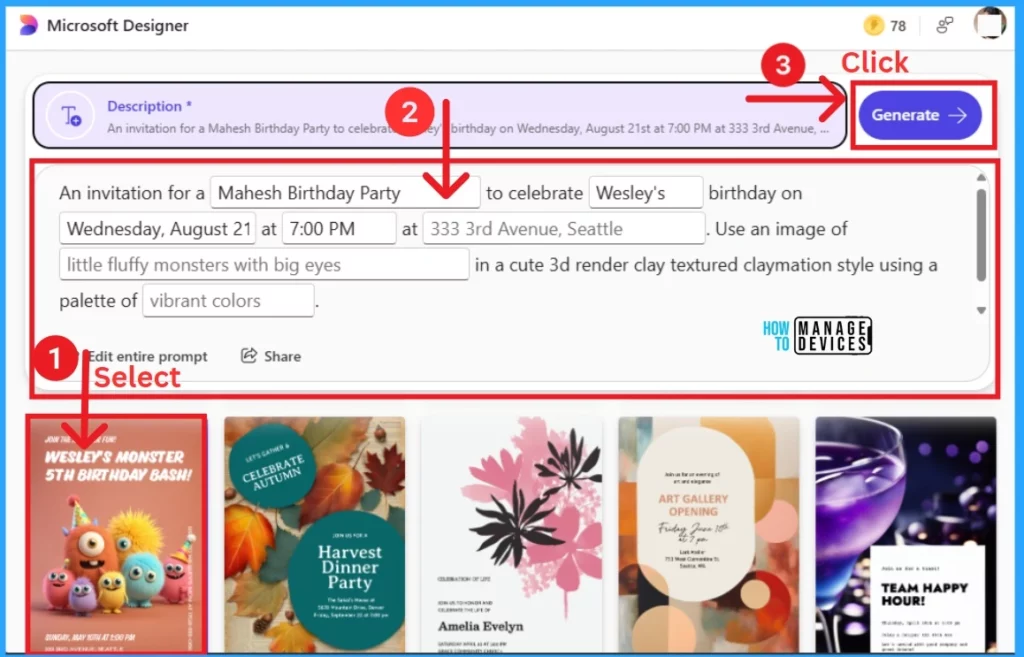
If you want to create an Invitation with your ideas, you can choose the Description box and enter your Prompt. Before entering your event description, you must ensure the following information is included. Here, I show the information with an example.
- The occasion (Mahesh’s 35th birthday, Viknesh and Navya’s 7th-anniversary celebration, etc.)
- The event’s date, time, and location or address (and if you forget to add something, you’ll see placeholder information that you can customize later)
- Optional: Provide additional info like the event’s dress code or how to RSVP
- Optional: The thermador style of the invitation (underwater, Art Deco, 80’s, etc.)
I would like to customize a birthday invitation card with a description. I select an invitation model from Microsoft Designer. AI prompts are given to generate the Birthday Invitation. I changed the details, such as the occasion name, time, date, etc., but I did not change some AI prompts.
- Click on the Generate button to create your Invitation.
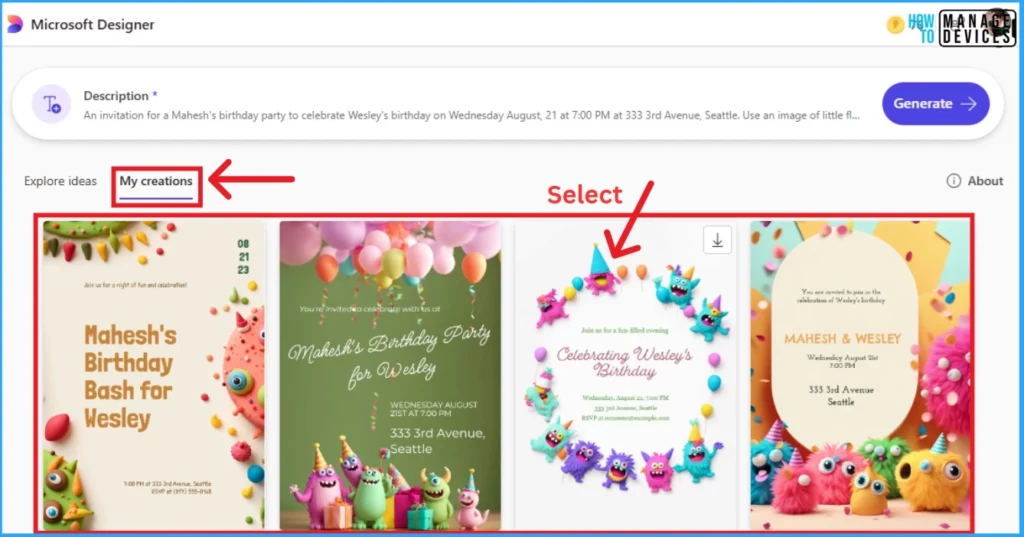
After that, I got 4 Invitation models according to the above description. The invitations I created can be seen on the My Creation tab. Here, I select the 3rd Model Invitation.
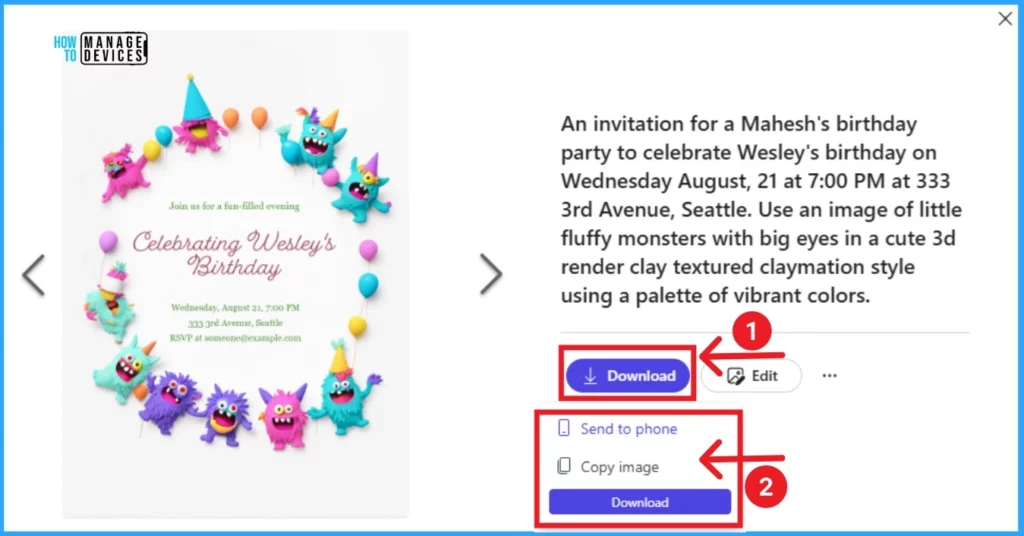
After selecting the third 3rd Invitation, you can see the Details in this window. You can easily download and edit the chosen invitation. After clicking the Download button, you will be greeted with 3 options: Send to phone, Copy image, and Download. The copy and download option helps you share this invitation with others.
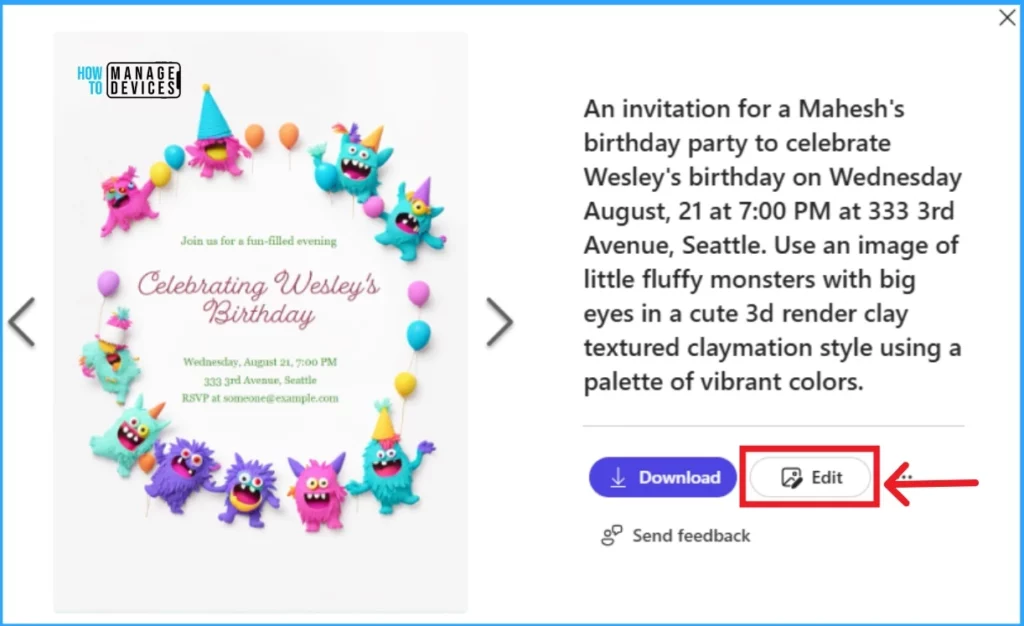
You can quickly edit the Created invitation. This option helps users modify the created invitation according to their preferences.
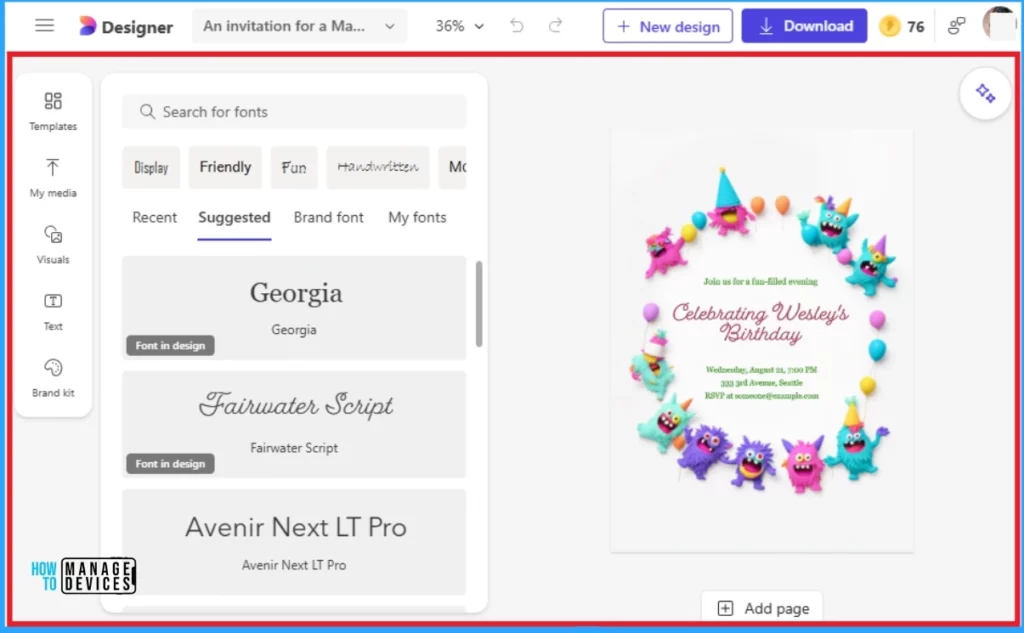
After clicking on the Edit option, another window will appear. You will find many editing tools, templates, fonts, brand kits, etc. You can upload files from this dev to Google Drive.
Different Traditional Events Available on Invitation Feature
Many traditional events and different types are available for different occasions. The following table shows the traditional events available on the Invitation feature.
| Different Traditional Events Available on Invitation Feature |
|---|
| Personal celebrations (birthdays, wedding save-the-dates, anniversary parties, baby showers, and other special occasions) |
| Holiday parties and family get-togethers |
| School functions (proms, fundraisers, graduations, end-of-year parties) |
| Garage sales and local events |
| Virtual events (book club meetings or other virtual meetups) |
| Sports tournaments, game nights, or fitness challenges |
| Themed parties (custom parties, movie nights, decade-themed events) |
Limitations of Invitation Feature
Undoubtedly, the invitation feature on Microsoft Designer is good. However, the Invitation feature also has some limitations. The list below shows some of the limitations of the Invitation feature.
- The invitation feature did not allow misspelled words and distorted graphics within the generated images due to some of Dall-E’s limitations.
- While Invitations seems to handle non-English prompts and outputs well, we’ve only thoroughly tested it with english,
- Latest AI Features of Microsoft Edge Browser | Game Changer
- Copilot AI Features make Microsoft Edge Go to Browser
We are on WhatsApp. To get the latest step-by-step guides and news updates, Join our Channel. Click here –HTMD WhatsApp.
Author
Anoop C Nair is Microsoft MVP! He is a Device Management Admin with more than 20 years of experience (calculation done in 2021) in IT. He is a Blogger, Speaker, and Local User Group HTMD Community leader. His main focus is on Device Management technologies like SCCM 2012, Current Branch, and Intune. He writes about ConfigMgr, Windows 11, Windows 10, Azure AD, Microsoft Intune, Windows 365, AVD, etc.

Discussion