






Exciting News! Microsoft Made Universal Print for macOS Available. In the fast-changing world of tech, Microsoft has once again created a significant contribution by introducing Universal Print for MacOS. This new feature has changed how Mac users print.
Mac users can seamlessly print from any application without installing additional drivers. Universal Print is designed to be easy for everyone to use, regardless of their app or device. It makes printing easy and works with all apps and devices without special drivers.
In 2020, Microsoft announced Universal Print for the cloud-based print infrastructure. It enabled businesses to operate their printers without requiring local PC driver installations. Instead, they could run the printers via the cloud using Azure.
Universal Print is a service from Microsoft 365 that changes the way we print. It is the best thing for the user and is entirely user-friendly. The cloud makes managing printers easier for IT teams and improves user printing. This allows users to avoid using old print drivers. This service is a part of Microsoft 365 subscription-based.

- Best Practices for Creating Entra ID Dynamic Groups for Intune
- Introducing AI Upgraded Snapdragon X Elite Qualcomm with Windows 11
Microsoft Made Universal Print for macOS Available
Universal Print is a modern print solution for organizations to manage their print infrastructure through Microsoft’s cloud services. The Universal printer is available in the app store now. This enhancement will provide comprehensive Mac device support within the Universal Print infrastructure.
Note: The Universal Print is now in Public Preview
Getting Started the Universal Print
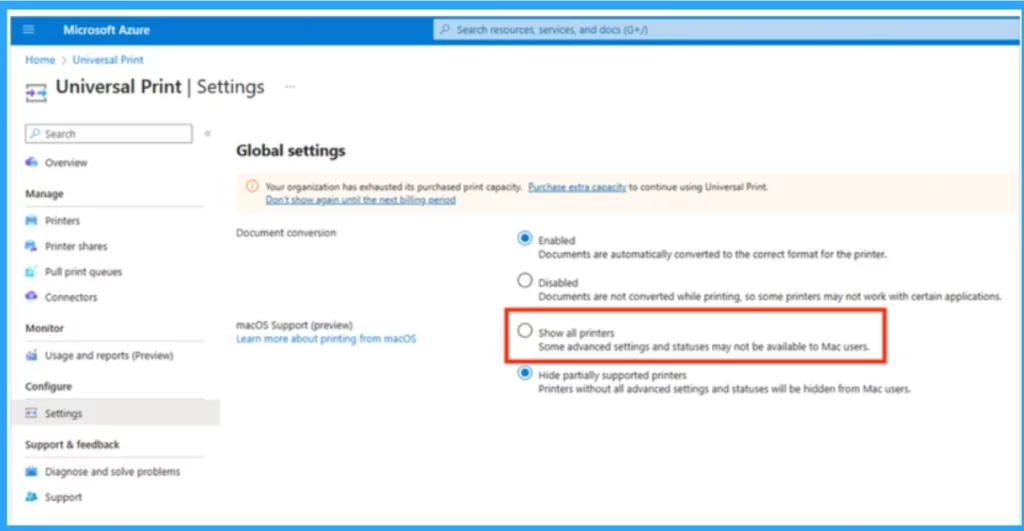
You can log in with your Microsoft Entra ID account when the app is installed. Users can find printers by name, such as “Building 8″ or “Design Studio. “First, open the Universal printer settings under the global settings.
- Select the option Show all Printers.
| Global Settings | Used to |
|---|---|
| Enabled | Documents are automatically converted to the correct format for the printer |
| Disabled | Documents are converted while printing, so some printers may not work with certain applications |
| Show all Printers | Some advanced settings and statuses may not be available to Mac users. |
| Hide partially support printers | Printers without all advanced settings and statuses will be hidden from Mac users |
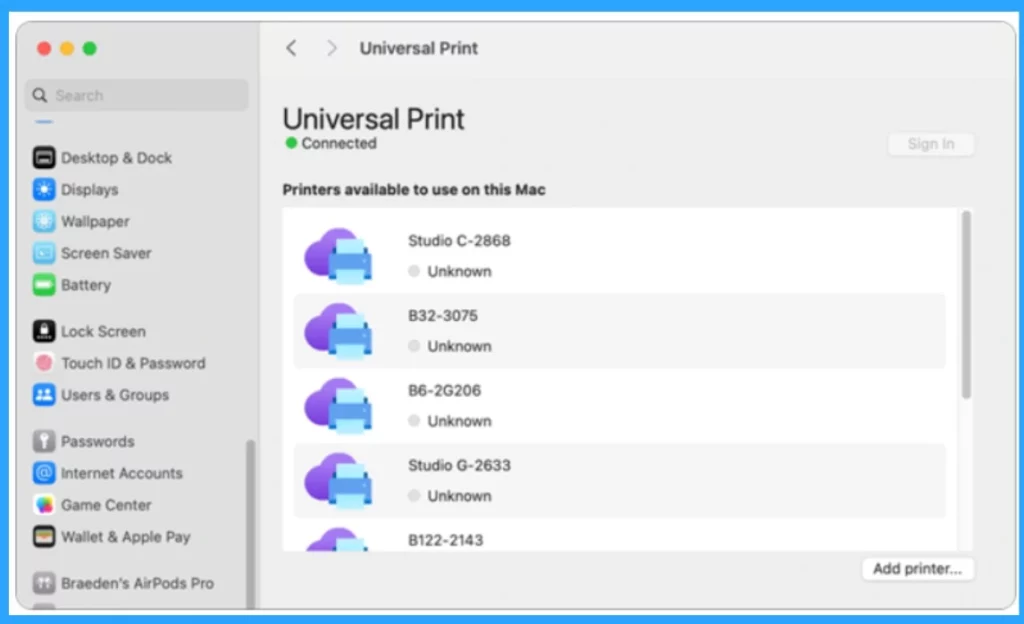
Download the Universal print application from the app store. Then login with the allowed access for Universal Print with at least one printer connected. The dialogue of Universal Print on macOS displays a list of accessible printers.
- Click on the Add Printers
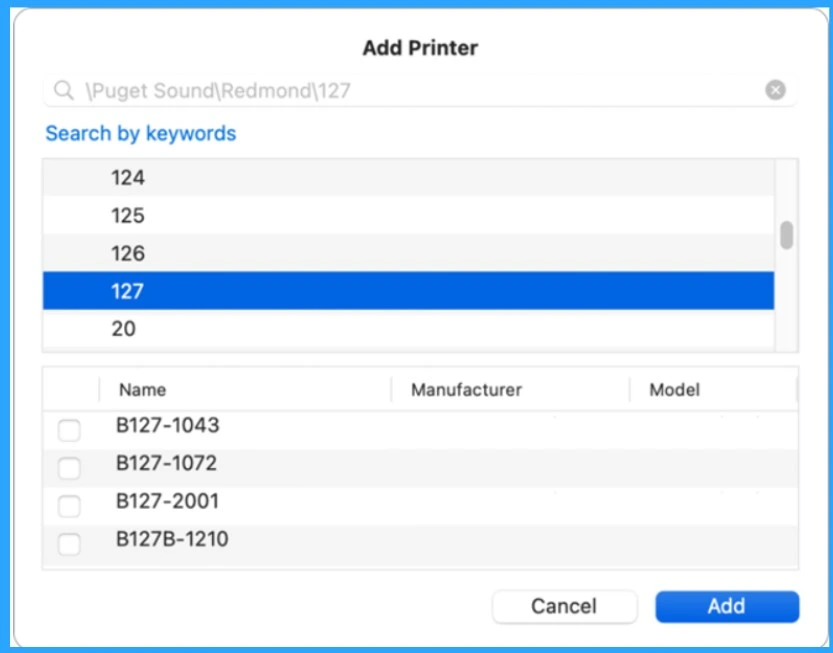
The “Add Printer” dialogue is displayed below; It indicates that you are searching for printers using a specific keyword. You can then find and Install a printer. Choose the printer(s) you want to add by ticking the checkboxes.
- Search for available printers by name or location
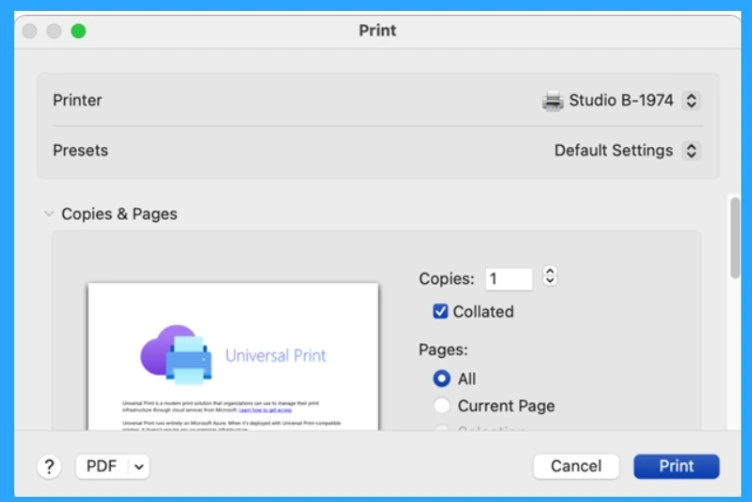
The print dialogue box in macOS displays the Universal Print printer. You can click on the Print option or press Cmd+P to open the system print dialogue from any application that allows the printer.
Reference
Public preview of Universal Print on macOS
We are on WhatsApp now. To get the latest step-by-step guides, news, and updates, Join our Channel. Click here. HTMD WhatsApp.
Author
Krishna. R is a computer enthusiast. She loves writing about Windows 11 and Intune-related technologies and sharing her knowledge, quick tips, and tricks about Windows 11 or 10 with the community.




Discussion